User Interface Overview
Top Bar Functions
The top area of the MEMS user interface provides three main categories of functions:
1.Message Notifications
2.Version Information
3.System Login
1. Message Notifications
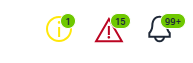
Message notifications indicate normal system events, successful operations, or automatic regulation activities, generally divided into three categories based on severity and display color:
| Color | Severity | Meaning | Typical Operator Action |
|---|---|---|---|
| Yellow | Warning | A potential issue or abnormal condition that requires attention. | Monitor the condition and take preventive action if necessary. |
| Red | Error / Critical | A fault, failure, or critical condition that may affect system operation. | Immediate action is required. Follow the alarm handling procedure. |
| Black | Info | A normal event, status change, or successful operation. | No immediate action is required. Review if necessary. |
The following action will trigger info message on black icon:
-
VC Hub is successfully connected
-
Sync is started or completed
-
System trigger Peakload regulation
-
System trigger Avoid Peakload regulation
-
System trigger Reactivation regulation
-
System stop Reactivation regulation
The following action will trigger Error / Critical message on red icon:
-
VC Hub is disconnected
-
License expired
The following action will trigger Warning message on yellow icon:
-
Sync failed
-
No License is available
-
License almost expired
-
Surplus regulation failed
The count of unread messages is displayed at the top of the icon. Click the icon, and detailed messages will be shown in the list.
Click the 'Mark all read' button, and the system will automatically mark all unread messages as read; the number of unread messages will decrease to 0.
Click the 'Clear all' button, and the system will automatically delete all messages in the list.
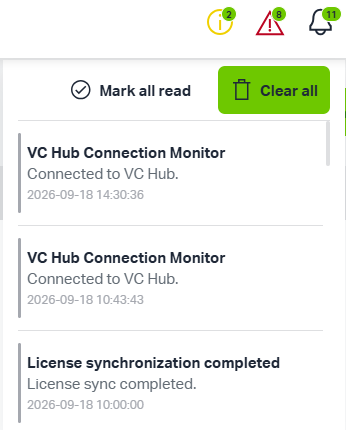
Error / Critical messages cannot be removed from the notification list until the user has explicitly acknowledged them. This prevents critical events from being missed, ignored, or deleted without review.
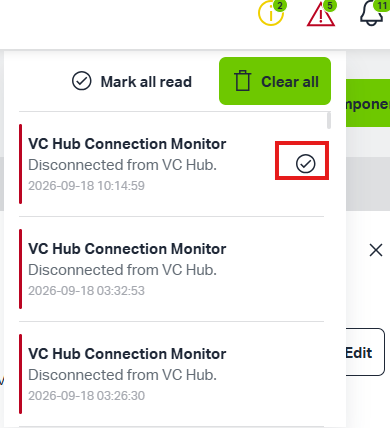
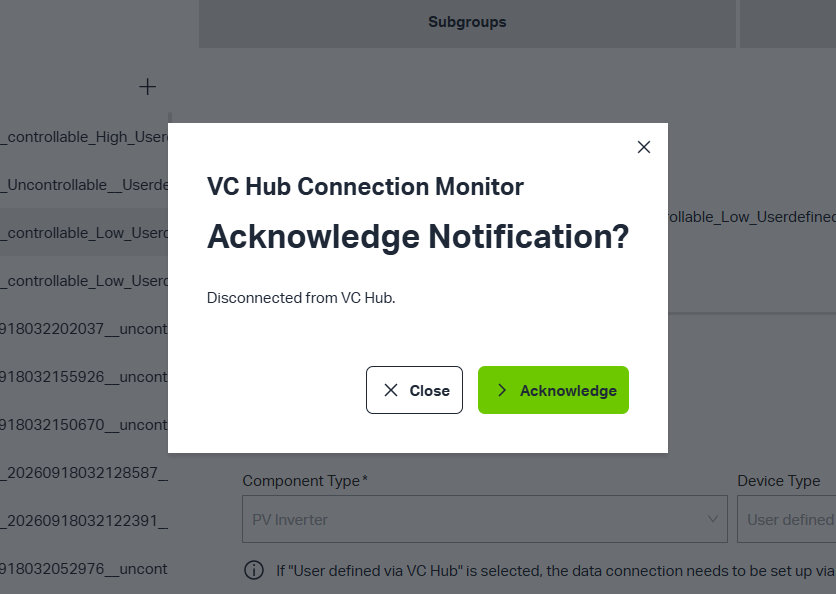
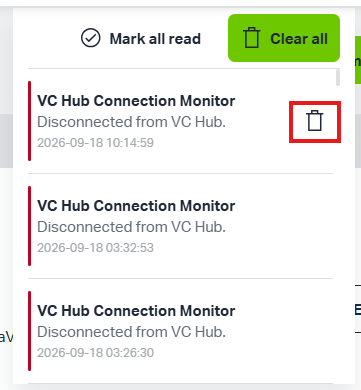
When all Error / Critical or Warning messages are cleared, the relevant icon will disappear.

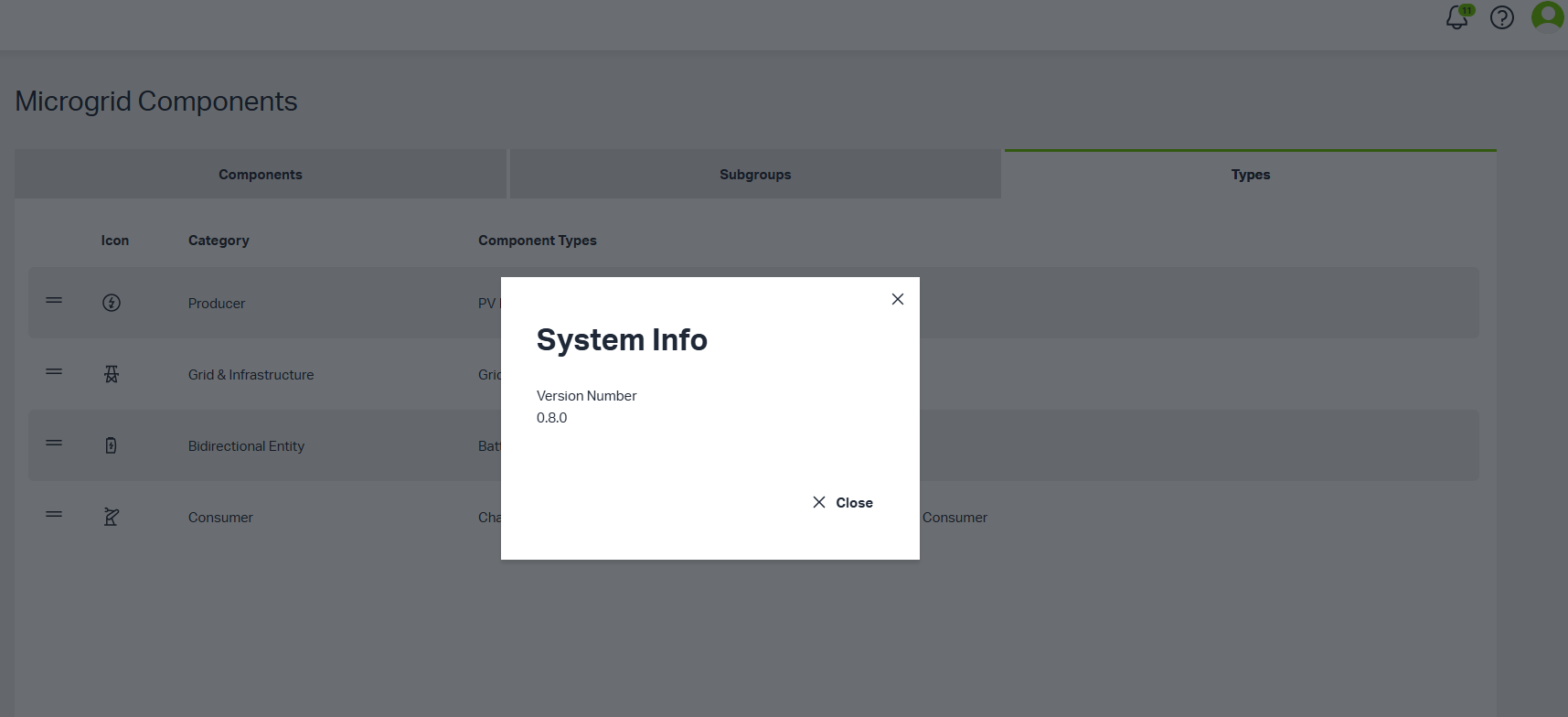
2.Version Information
Click the Version Information button, and the Version Information will be displayed.
3.System Login
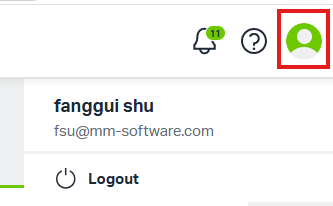
The user avatar in the top bar provides access to account-related functions. Clicking the avatar will display detailed user information. Clicking the Logout button allows the user to securely log out of the system.
SiderBar Functions
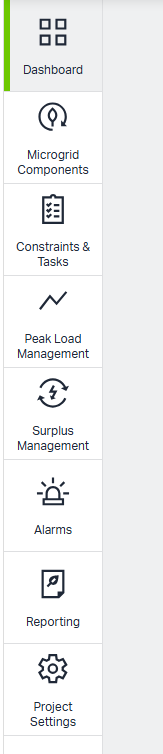
MEMS provides an integrated set of functions for configuring, monitoring, controlling, and reporting on microgrid operations. It supports the full workflow from component creation and data connection to automatic regulation, alarm handling, system configuration, and energy reporting. Users can perform these actions by clicking the sidebar buttons.
1.Dashboard
The Dashboard provides a centralized overview of energy usage across the system. It summarizes how energy is generated, consumed, stored, and exchanged, allowing users to quickly assess the current operating condition of the site.
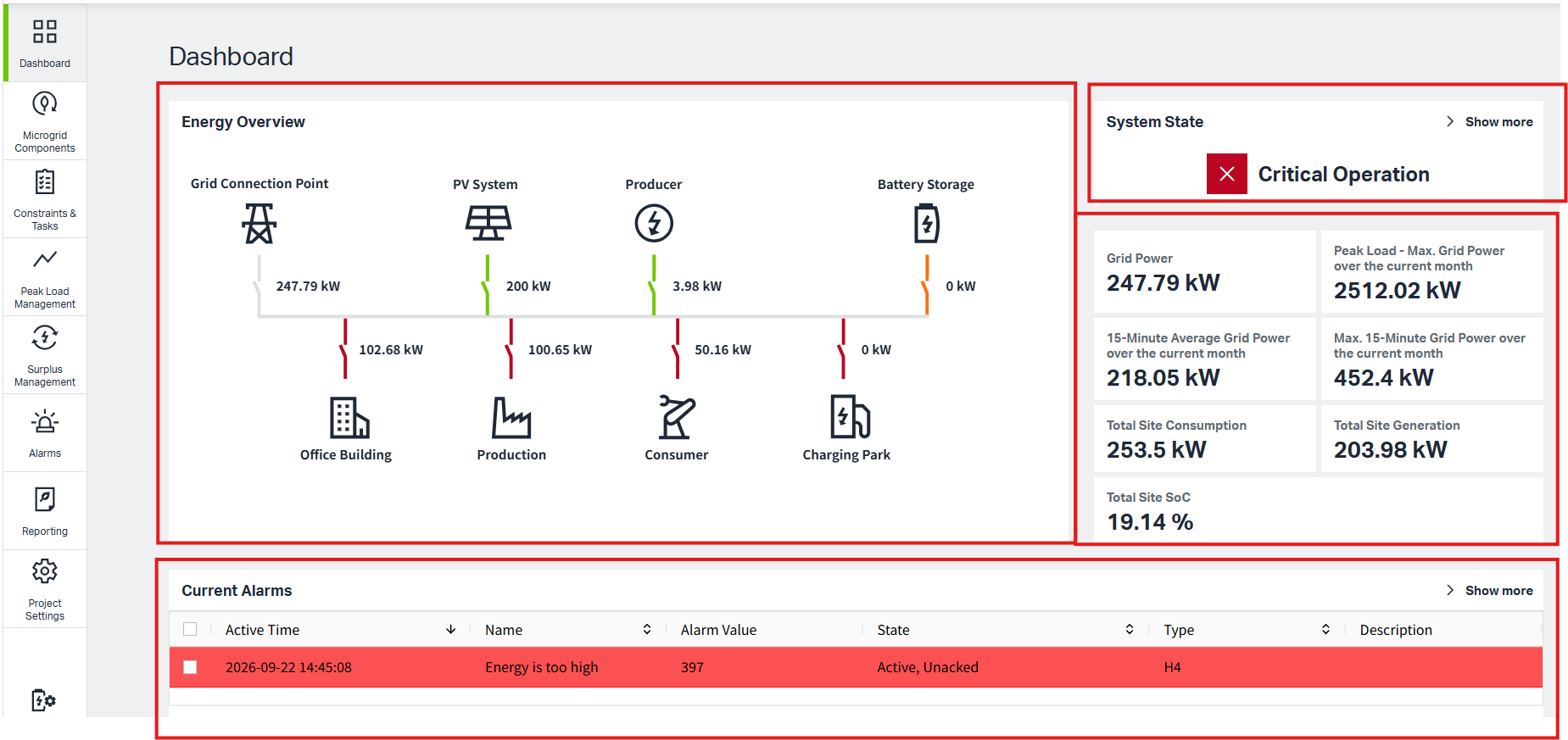
'Energy Overview' displays an overview of energy usage for all configured endpoints and allows users to configure consumption endpoints and generation endpoints in VC Hub.
'System State' detects abnormal conditions based on Load Management Settings or user-defined alarms and displays the corresponding system status.
'Current Alarm' can display user-defined alarms when the configured alarm conditions are triggered.
2.Microgrid Components
The Microgrid Components page allows users to build and manage the logical structure of the microgrid by adding different components, subgroups, or folders.
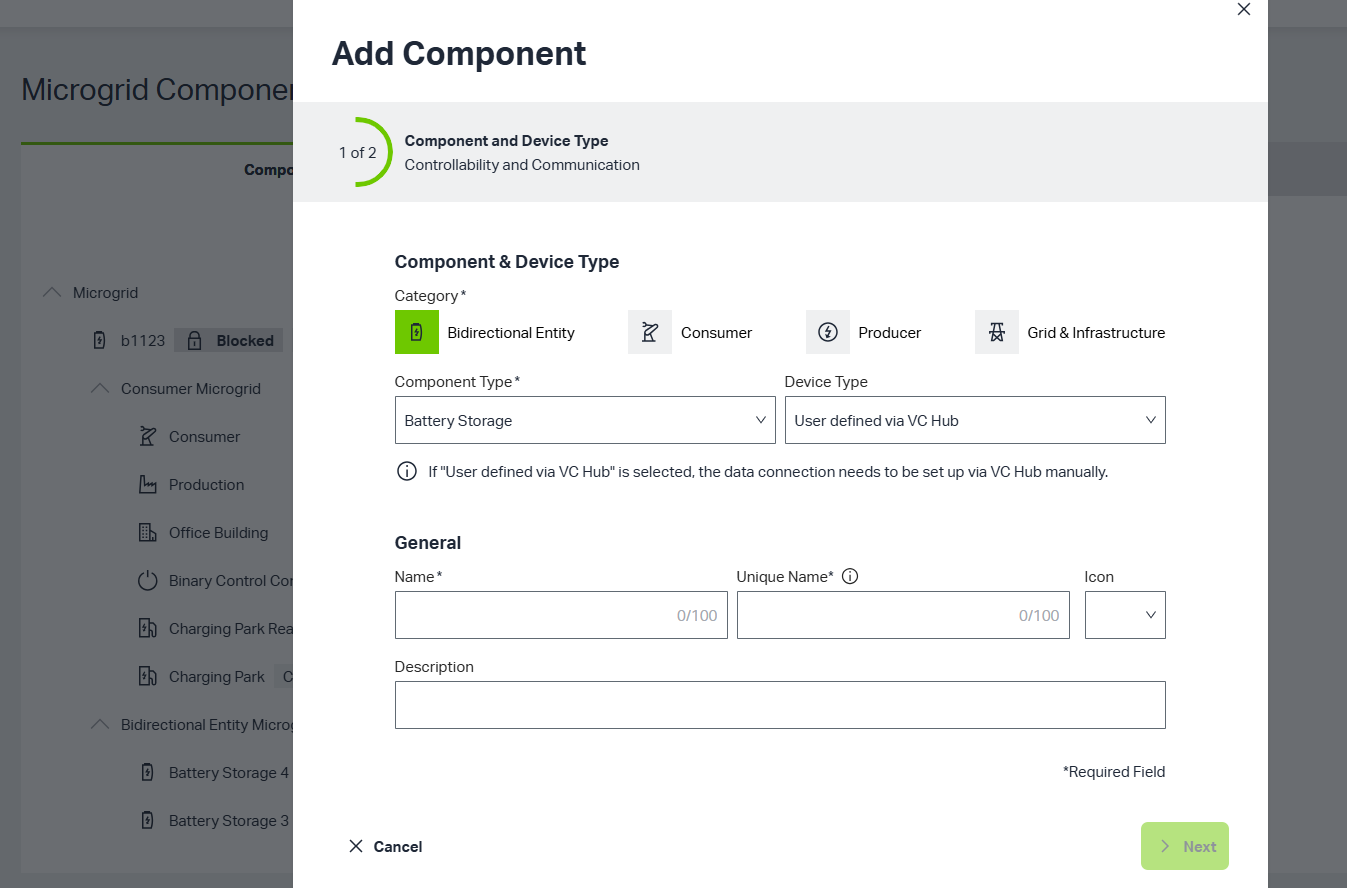
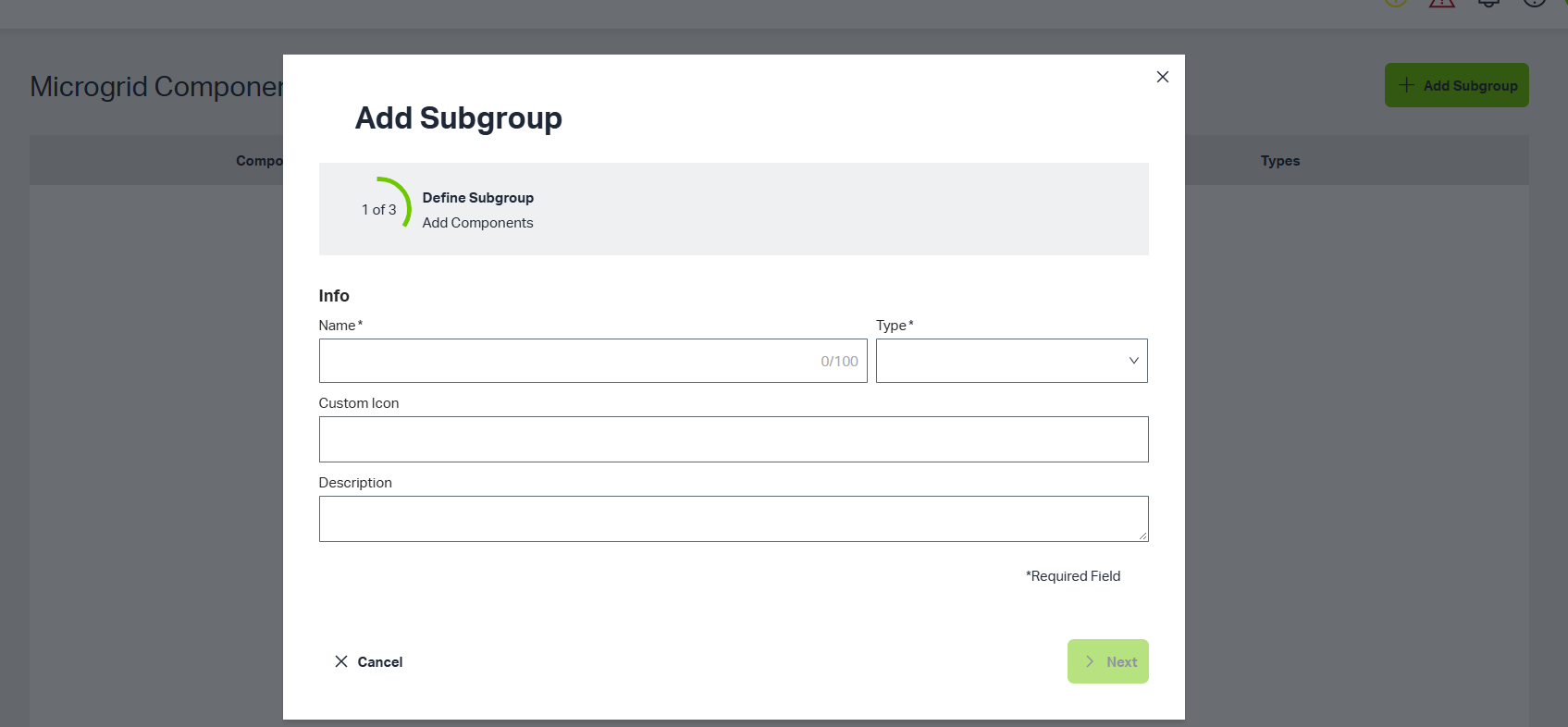
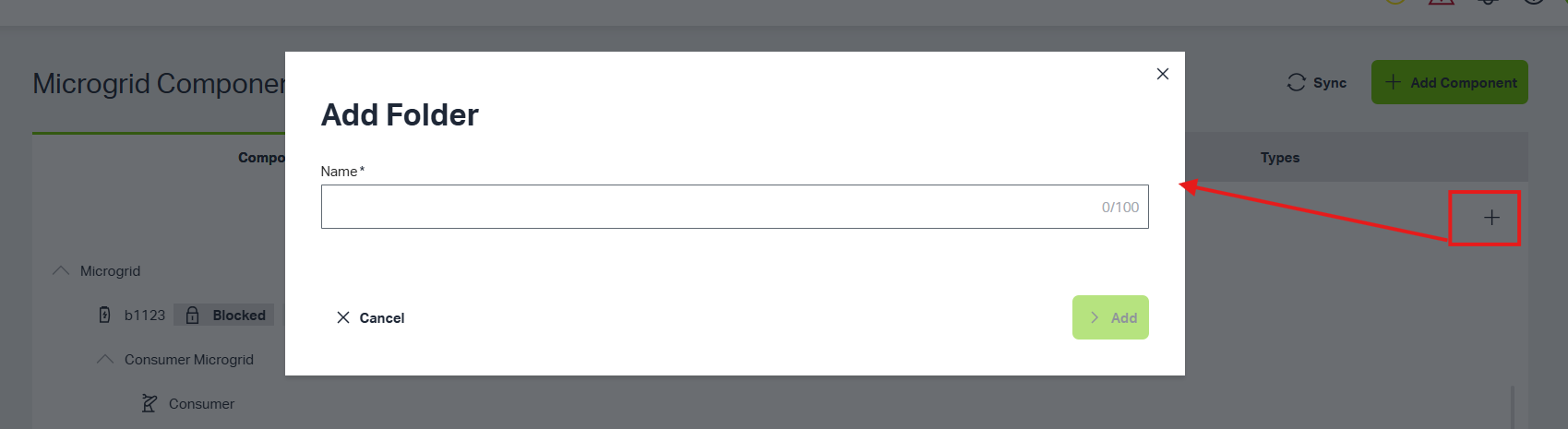
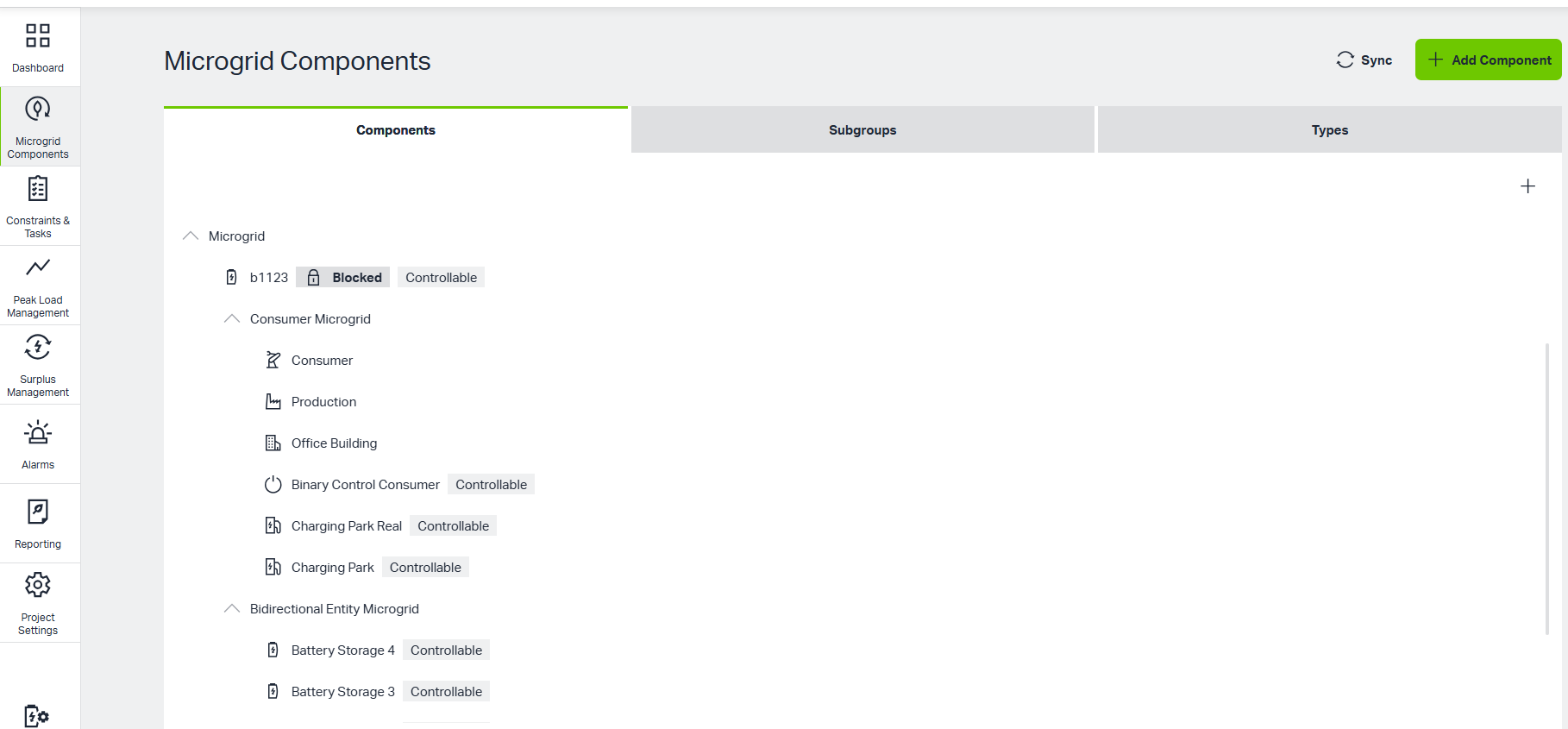
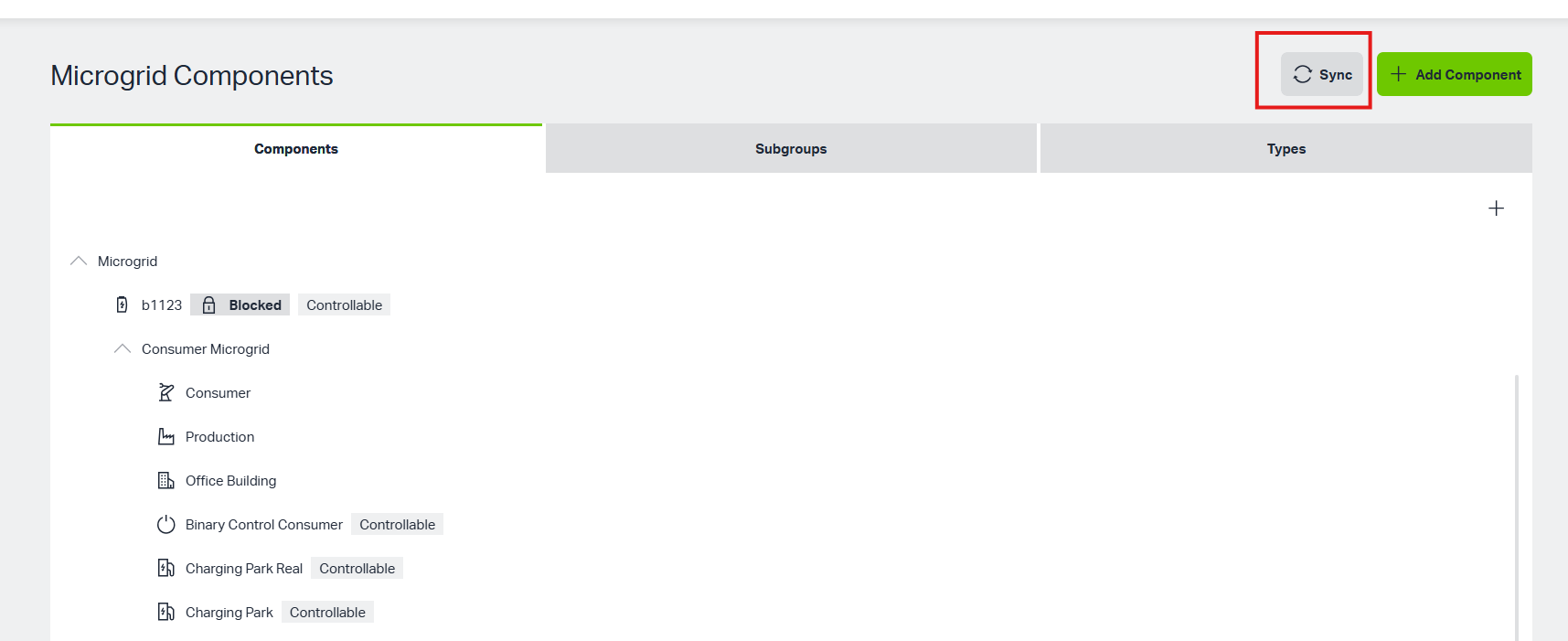
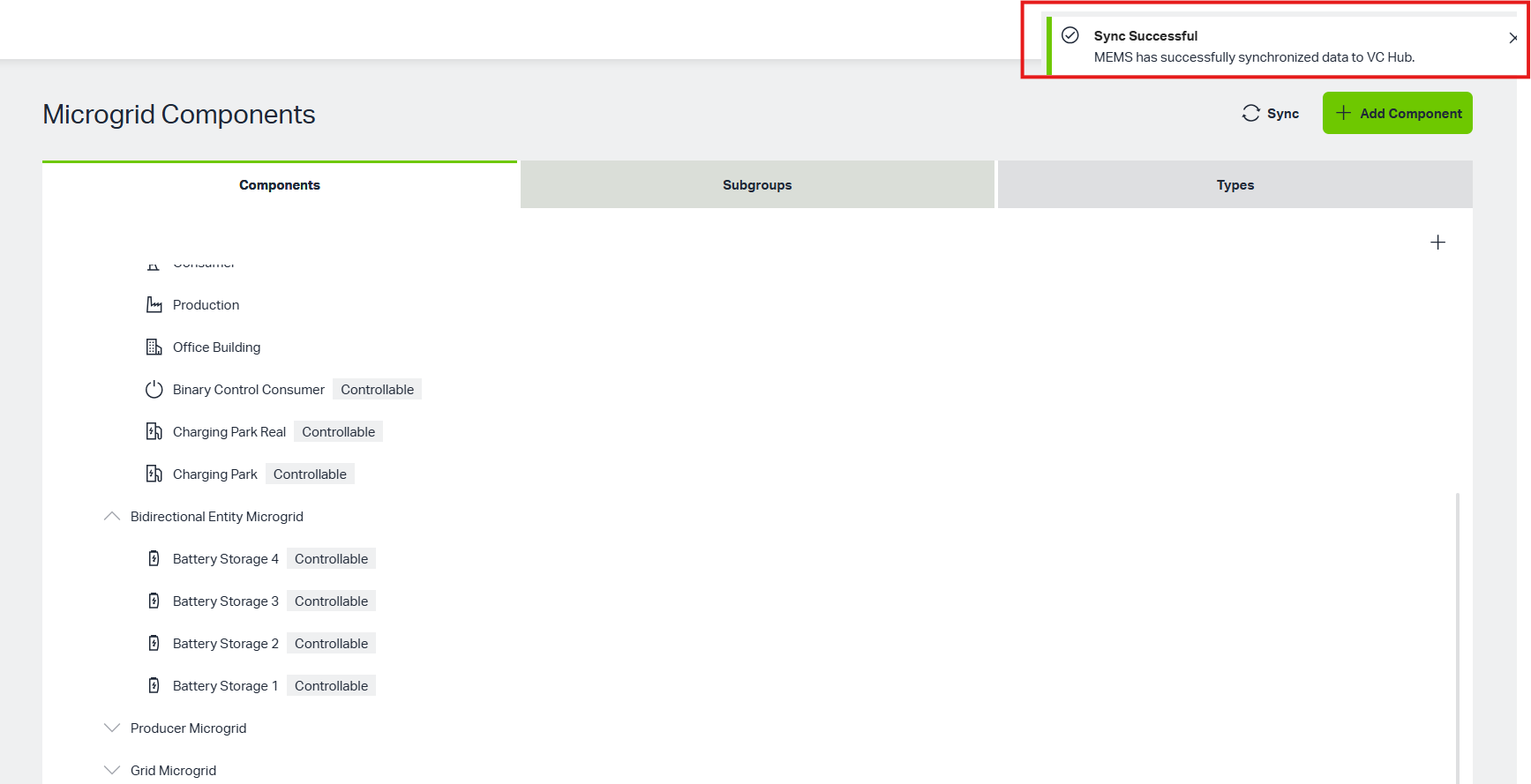
Users can create different types of components and synchronize them to VC Hub.
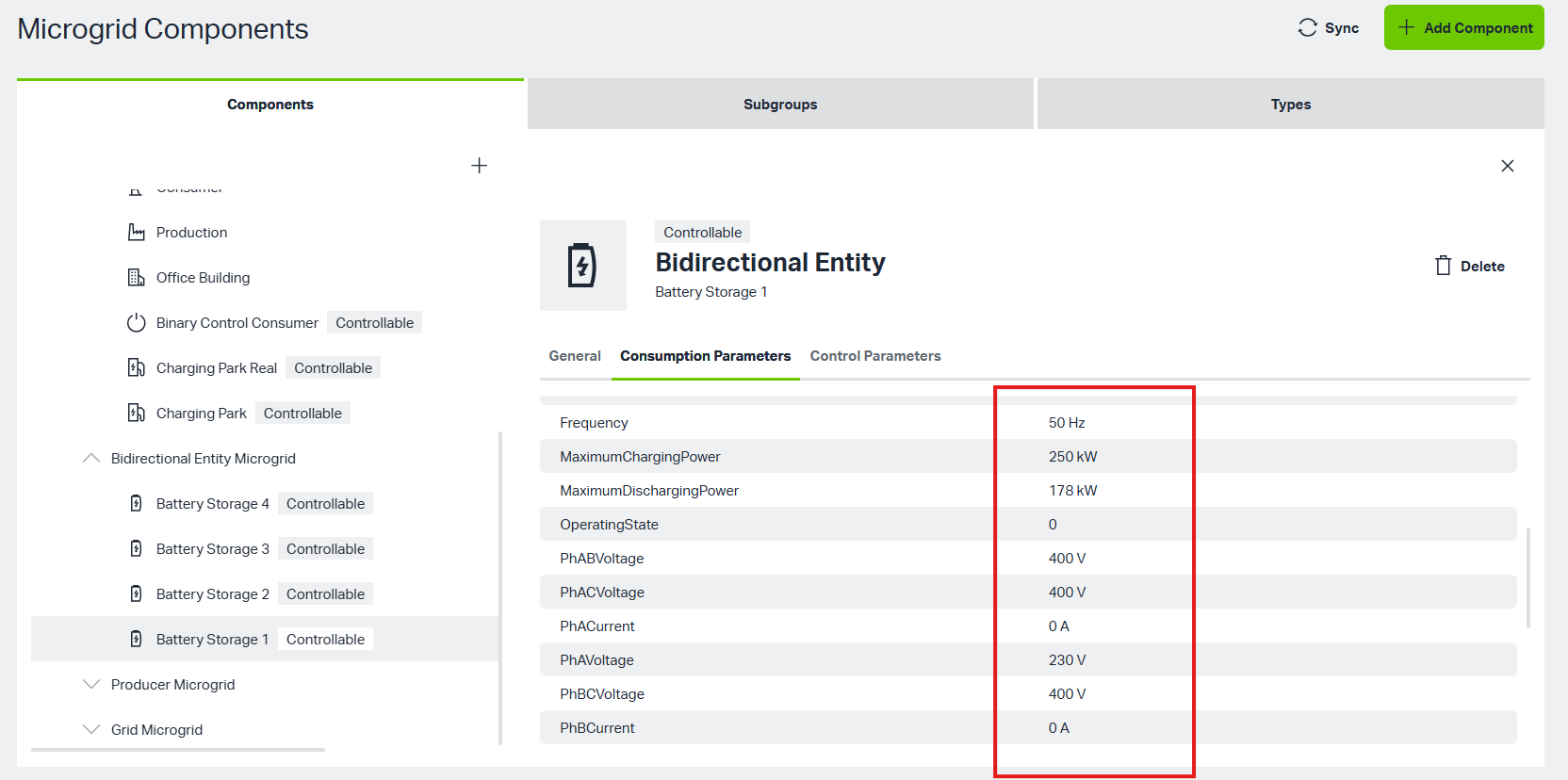
Once synchronized and connected to real data sources, component data becomes available on the component details page.
3.Constraints & Tasks
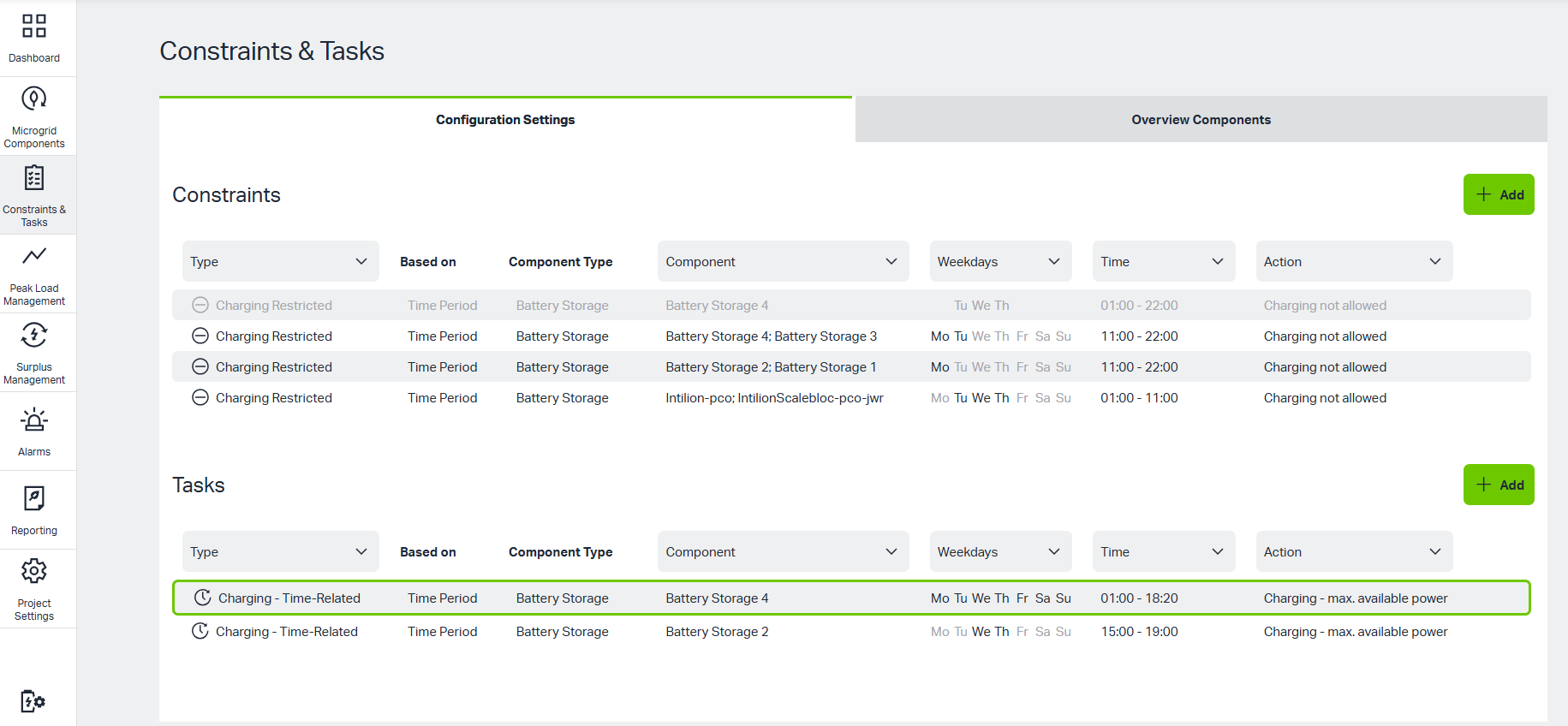
The Constraints & Tasks page allows users to define time-based Constraints and Tasks, as well as scheduled actions for the microgrid.
Constraints limit how the system or a component may operate during a specified period. Tasks can schedule the charging of a battery component during a specified period.
4.Peak Load Management
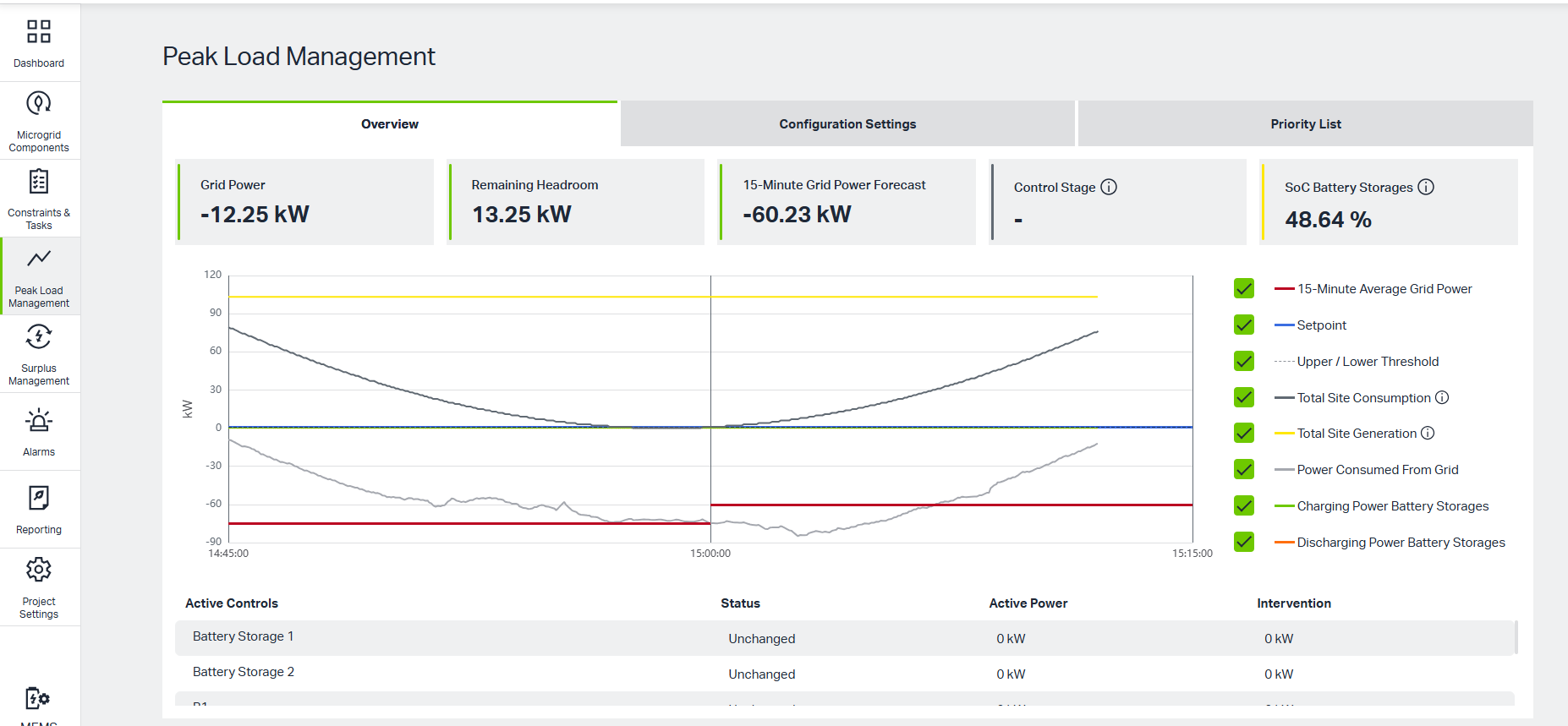
Peak Load Management is a control and monitoring function that helps maintain grid power and site consumption within a configured range. It provides two main capabilities:
-
Display system energy changes — visualize how generation, consumption, storage, and grid exchange vary over time.
-
Adjust system consumption — automatically regulate consumption when it is too high or too low, keeping operation within the configured reasonable range by using created stages.
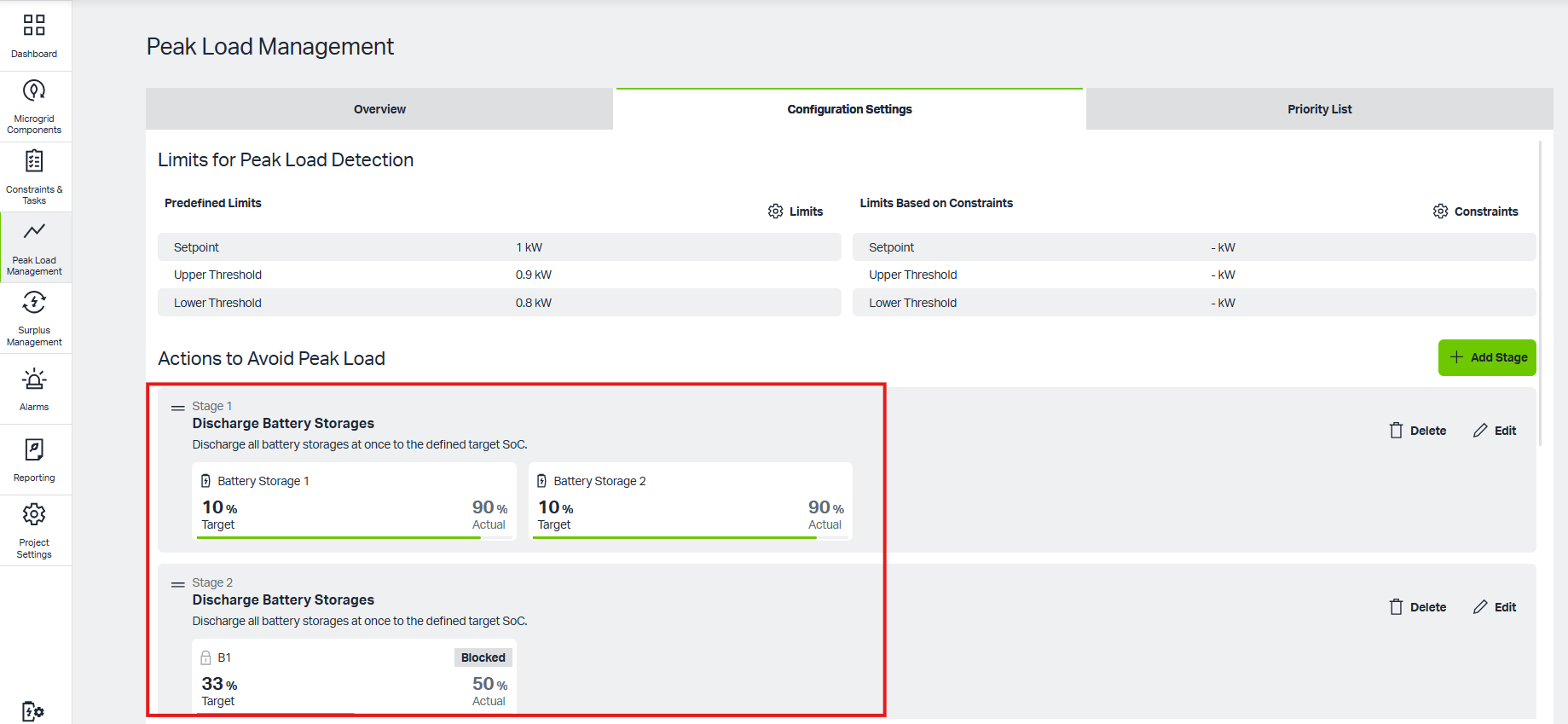
This function supports peak shaving, demand charge reduction, grid stability, and efficient use of renewable generation and battery storage.
5.Alarms
The Alarm interface provides a centralized view of all alarms generated in the system. It displays two main categories of alarms:
-
Regulation-triggered alarms — alarms generated automatically by the system during regulation actions, such as peak load management, battery control, or surplus handling.
-
User-defined alarms — alarms generated when a condition configured by the user is met, such as a threshold, anomaly, or custom event.
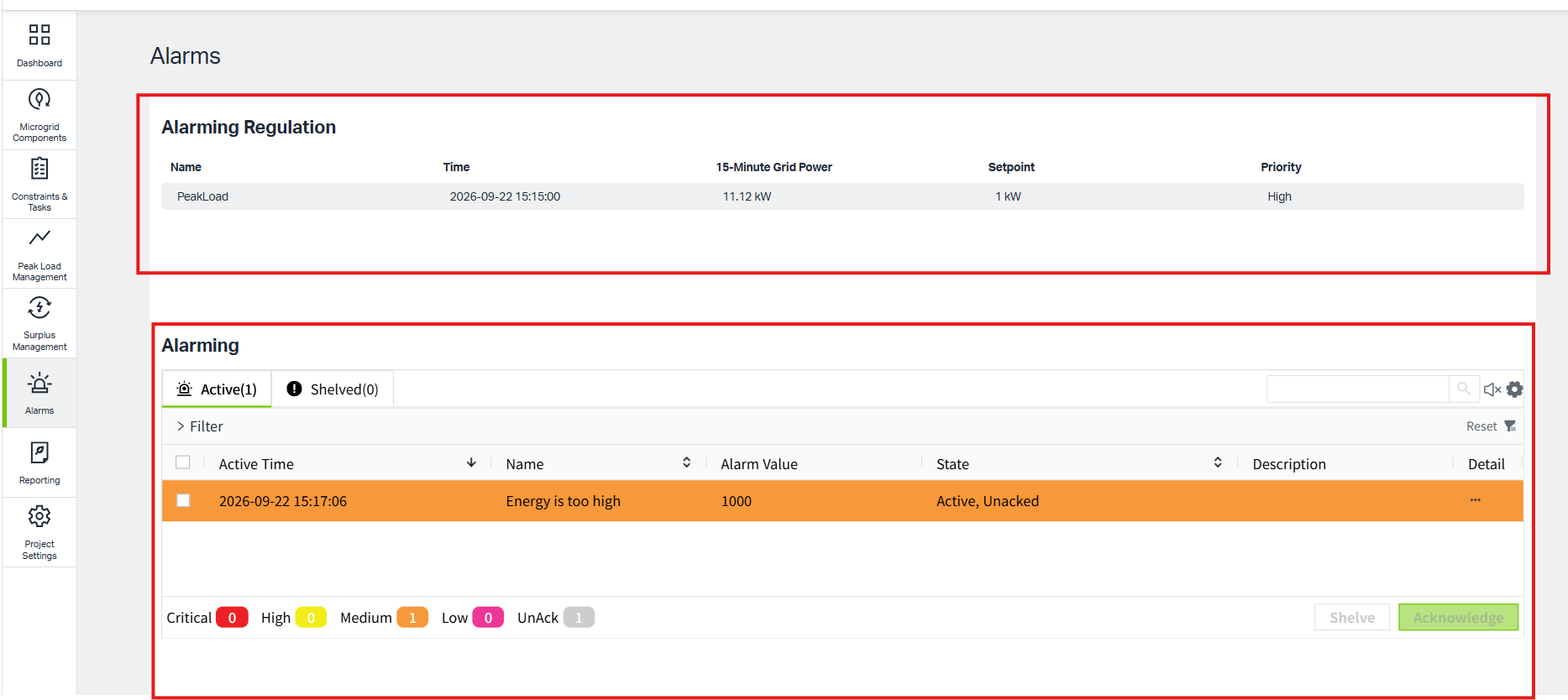
The Alarm interface helps users monitor system health, respond to abnormal conditions, and review historical events.
6.Reporting
The Reporting interface provides users with a clear view of energy consumption over time. It supports both annual and monthly consumption views, allowing users to analyze trends, compare periods, and support energy management decisions.
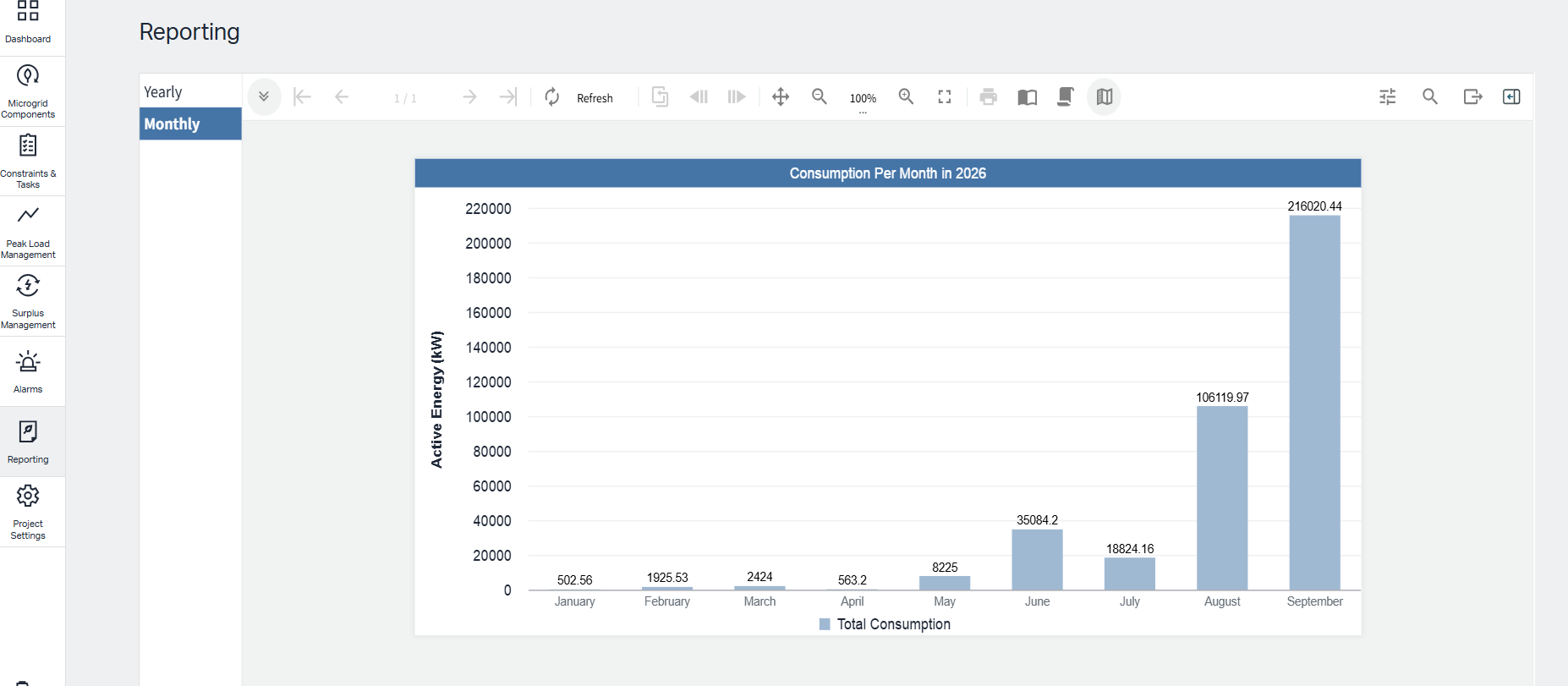
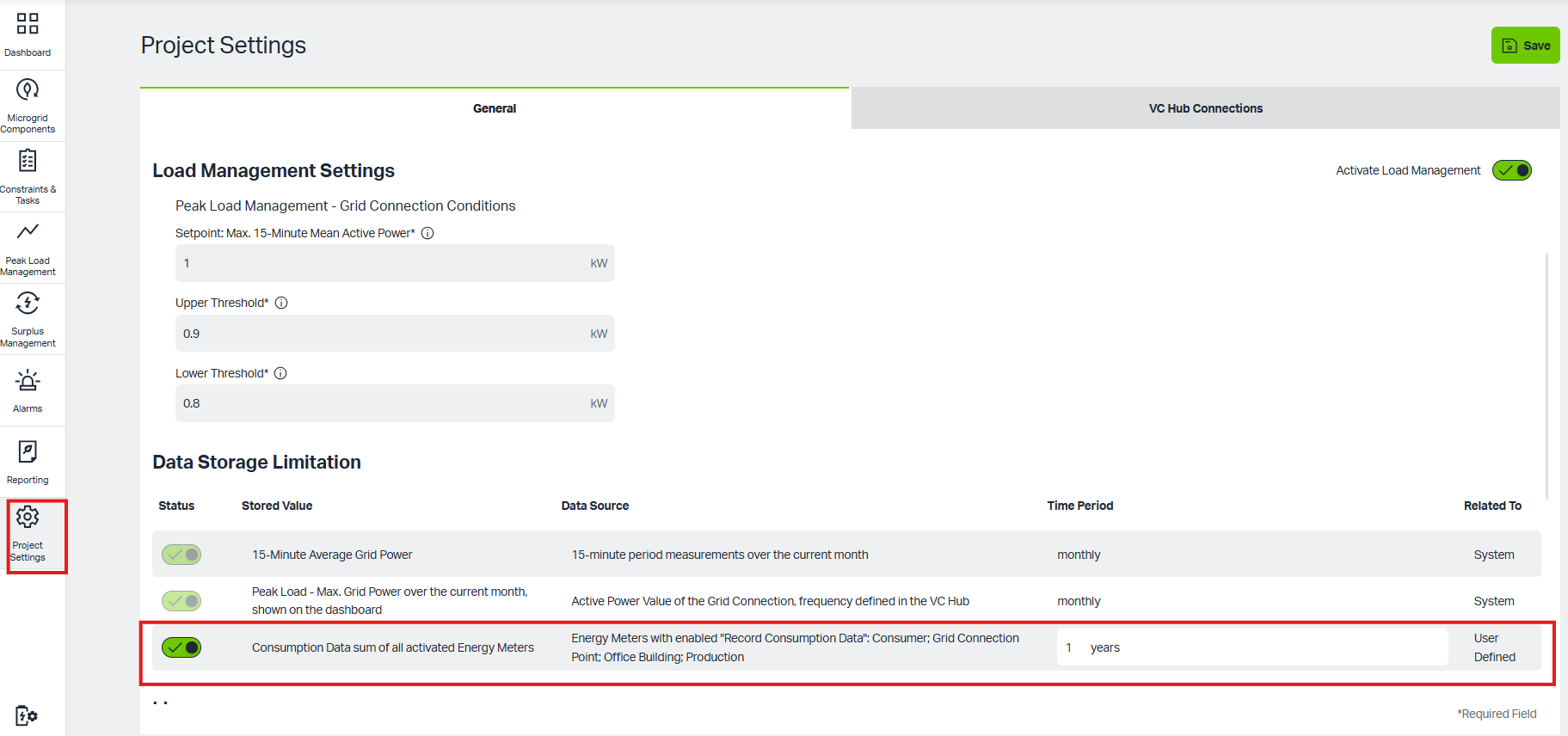
The range of data that users can see is controlled by configuration in the Project Settings page. Only data within the configured visibility range will be displayed in reports.
7.Project Settings
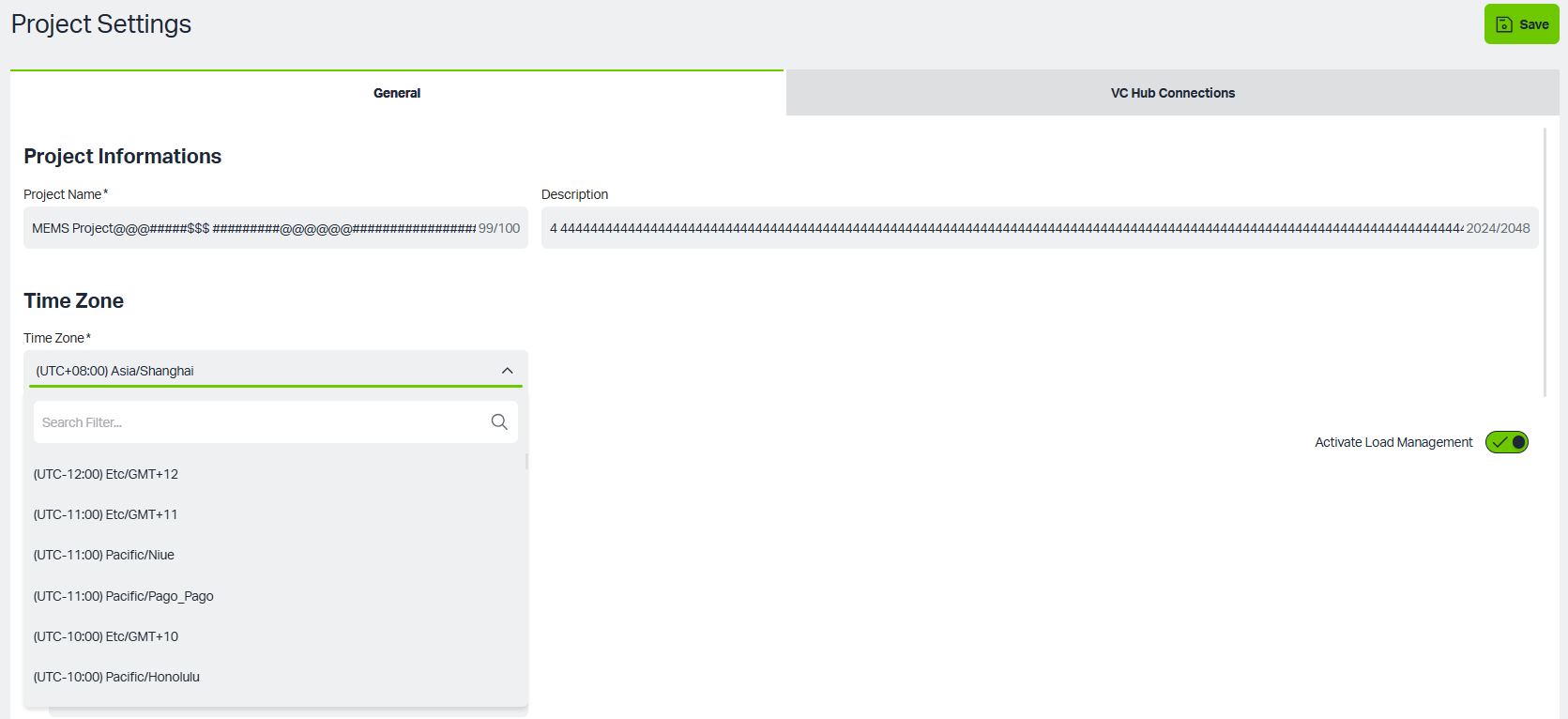
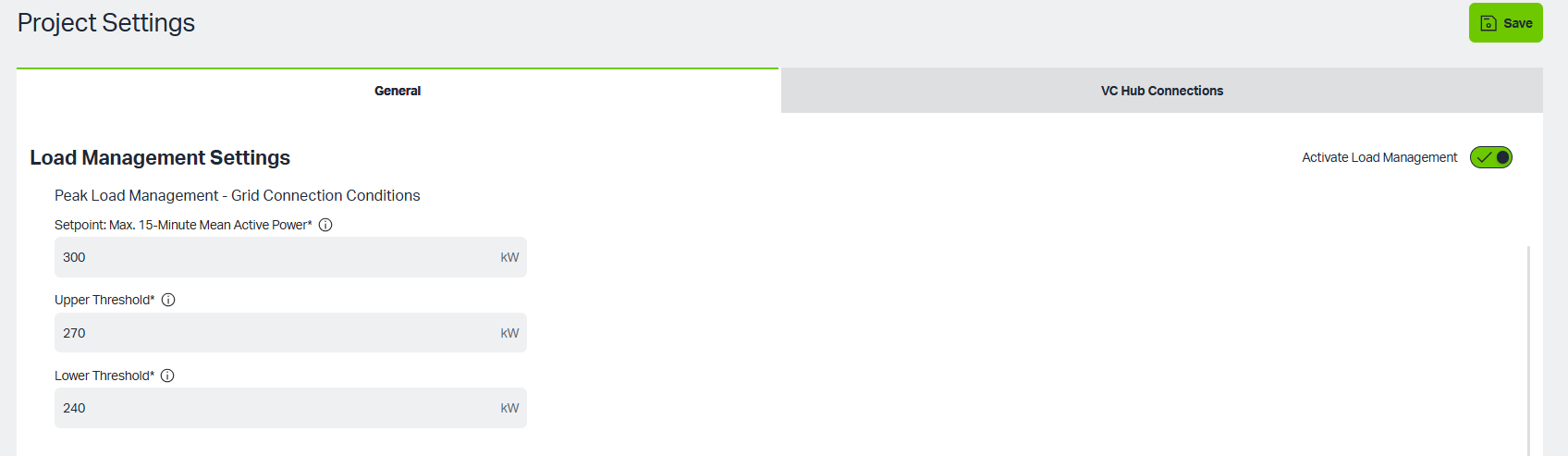
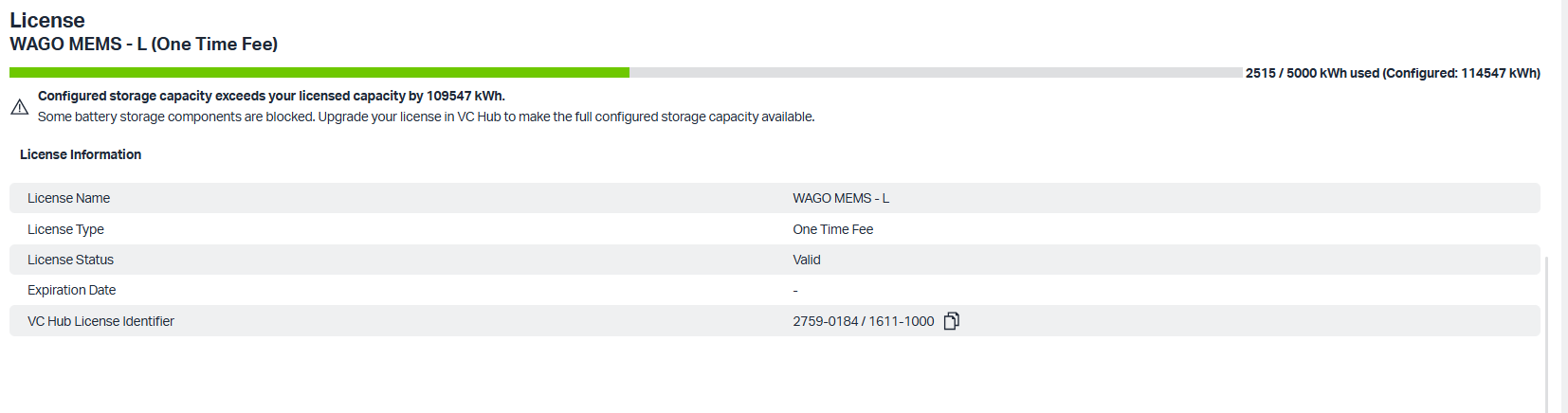
The Project Settings page provides system-level configuration options for the MEMS project. It allows authorized users to define basic project information, control time and regional settings, enable or disable load management, manage data retention, configure licensing, and verify connectivity to VcHub.
This page typically includes the following configuration areas:
-
Modify Project Information, set System Time Zone
-
Set Load Management Settings
-
Set Data Storage Limitation

-
License Configuration
-
VC Hub Connection Test