Microgrid Components
1. Folder
User can create folder by clicking 'Add' button
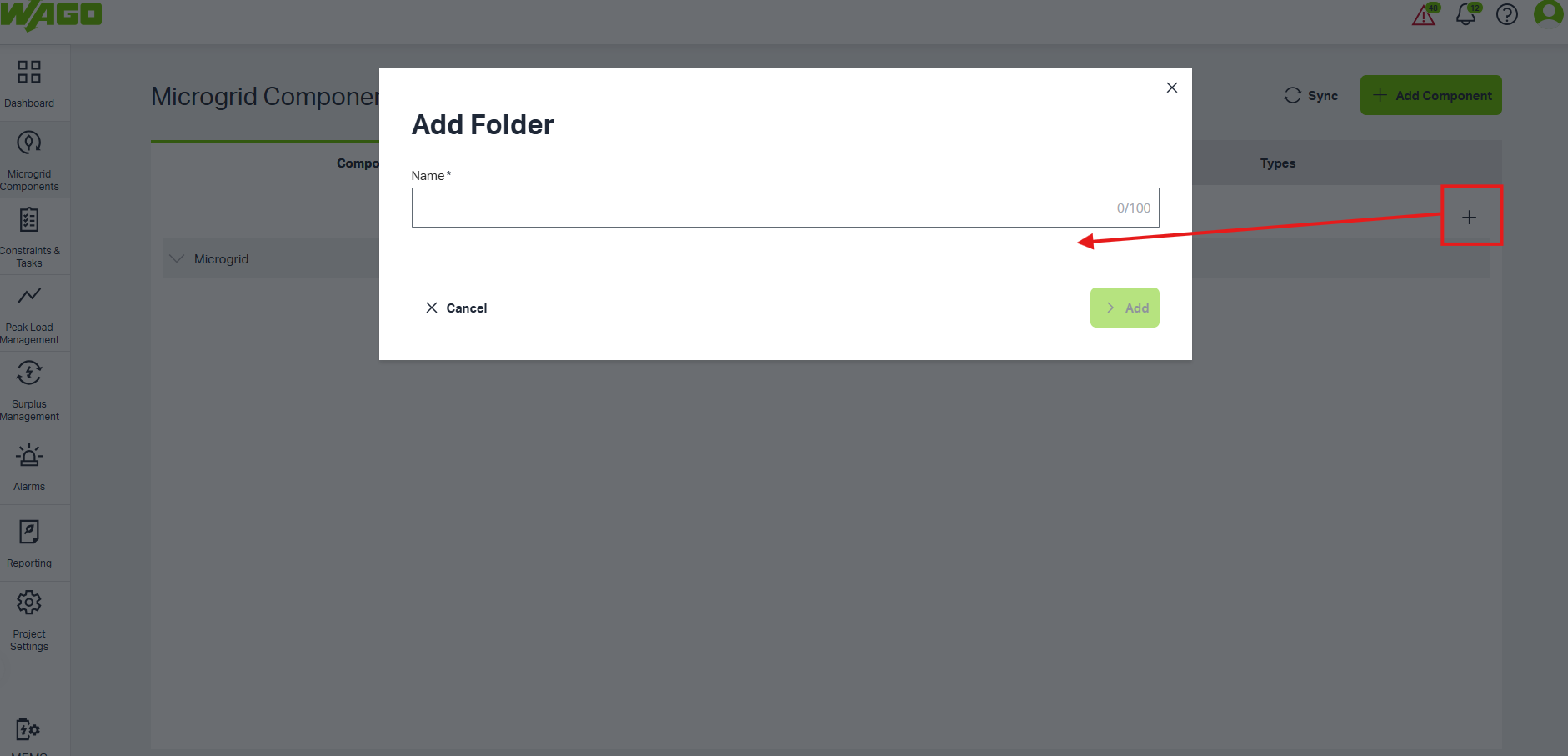
Input folder name, click 'Add' button, folder can be created successfully
Right-click a folder, user can modify or delete the folder.
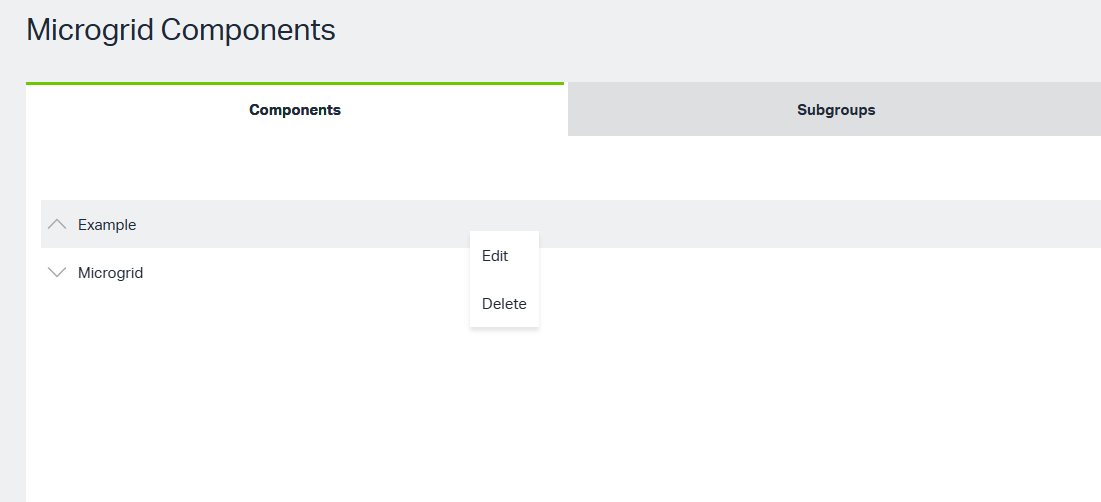
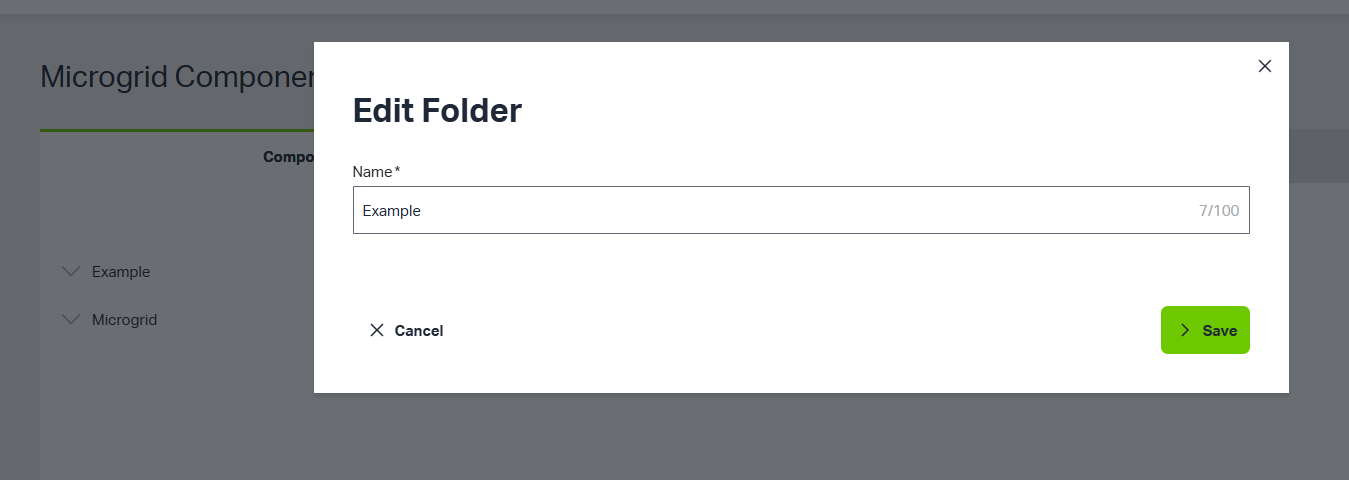
User can rename folder'name by clicking 'Edit' button
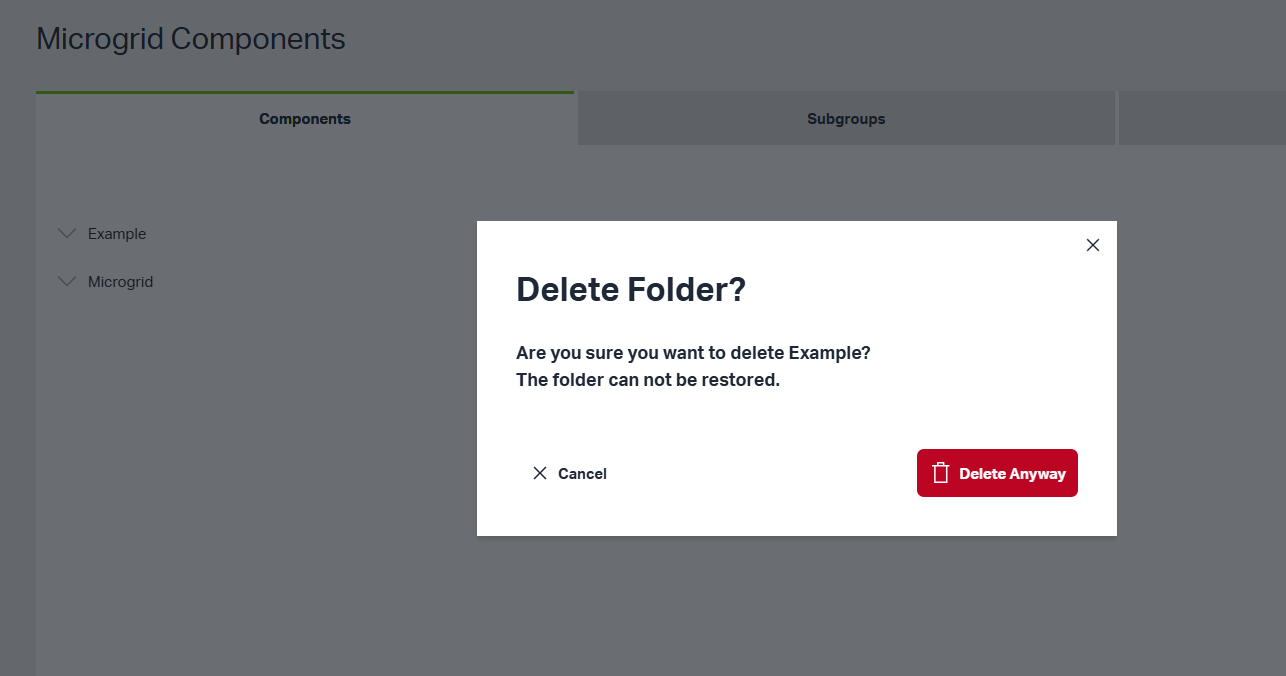
User can delete folder by clicking 'Delete' button
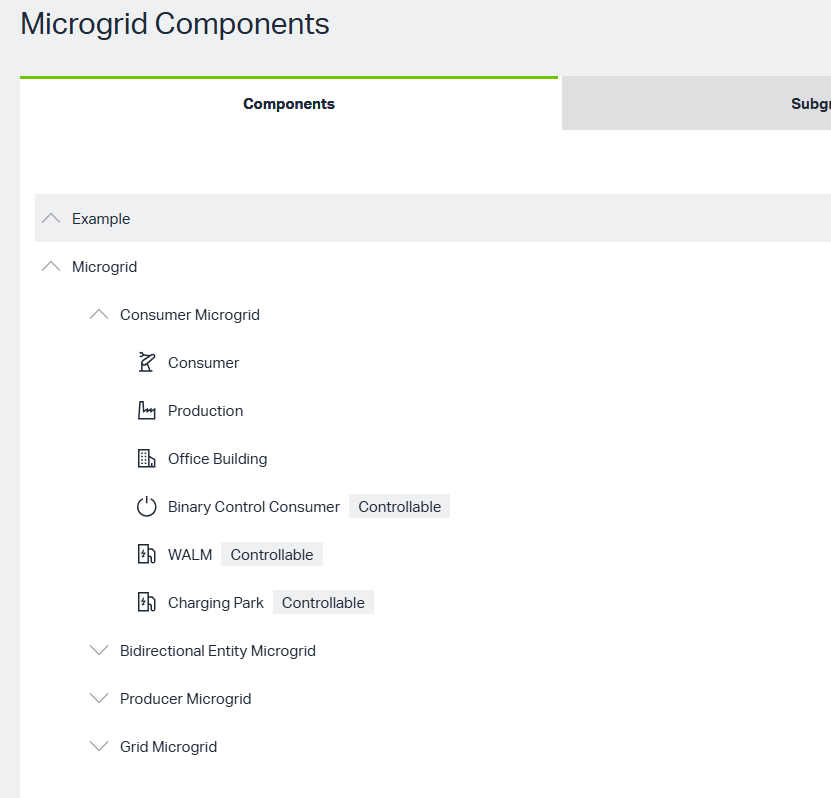
User can create different levels of subfolders and components within folder
2. Components
Click 'Add Component' button
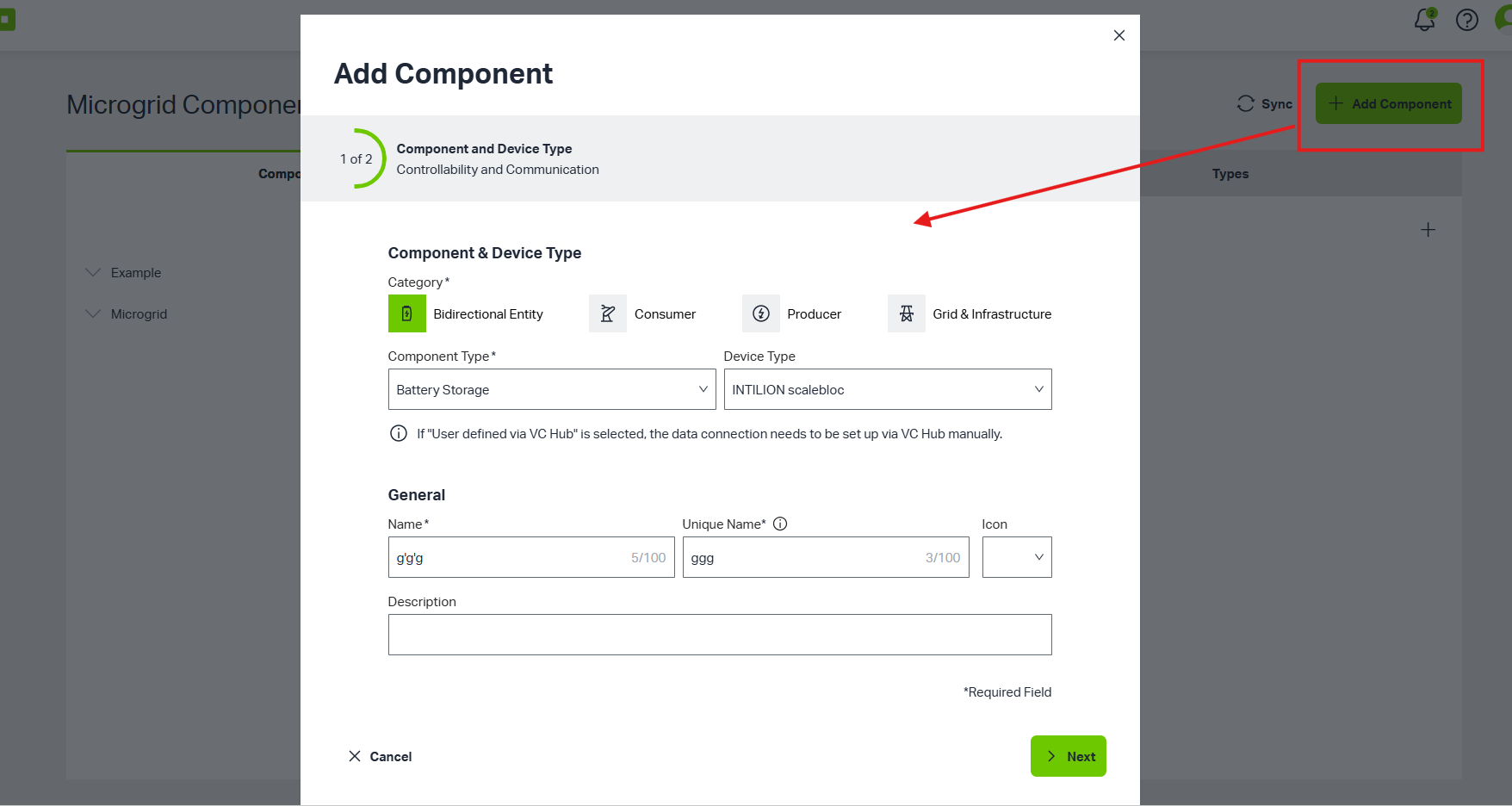
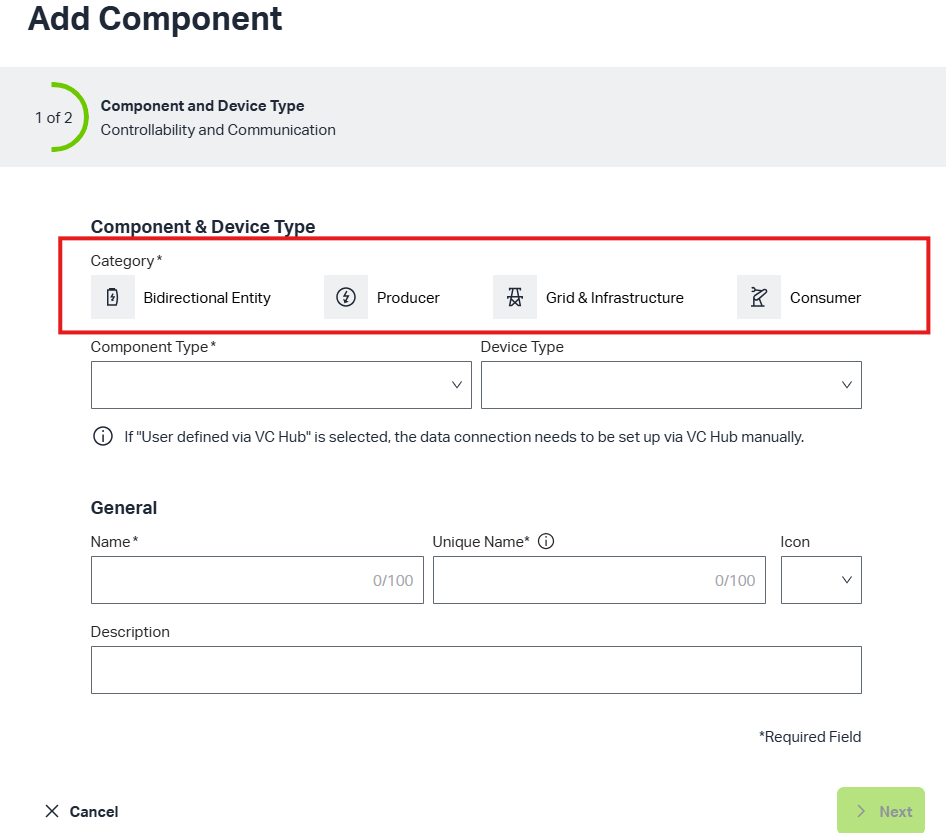
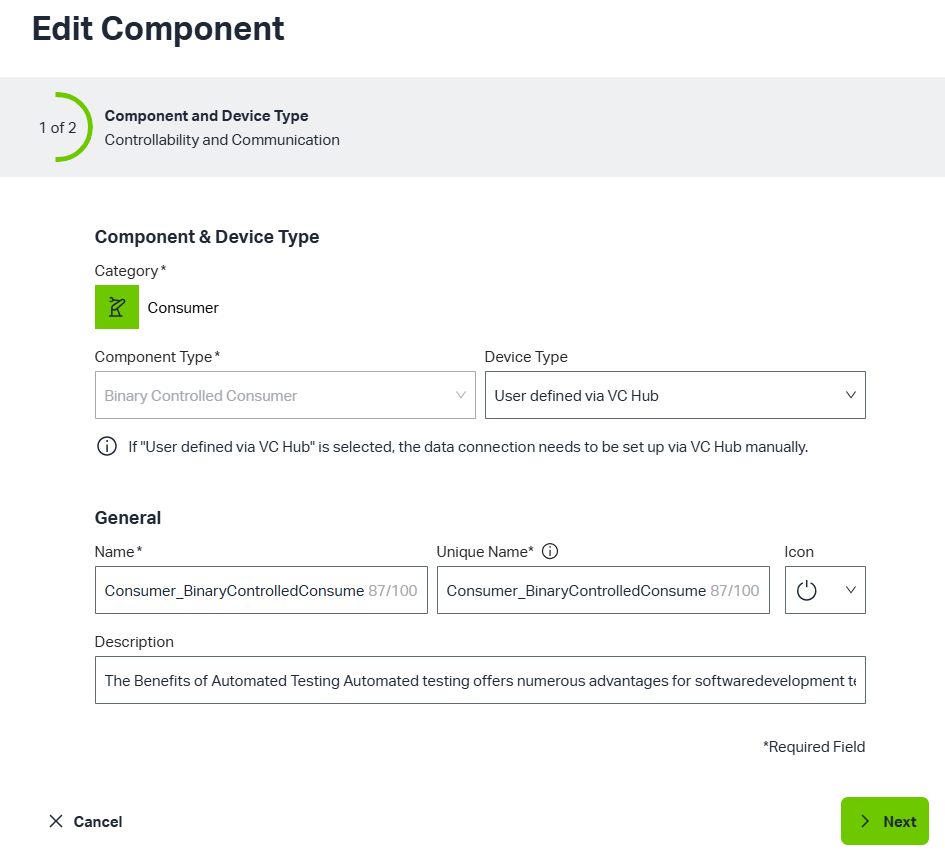
user can choose Category\Component Type\Device Type\Icon and fill in Name Unique Name and Description in first page
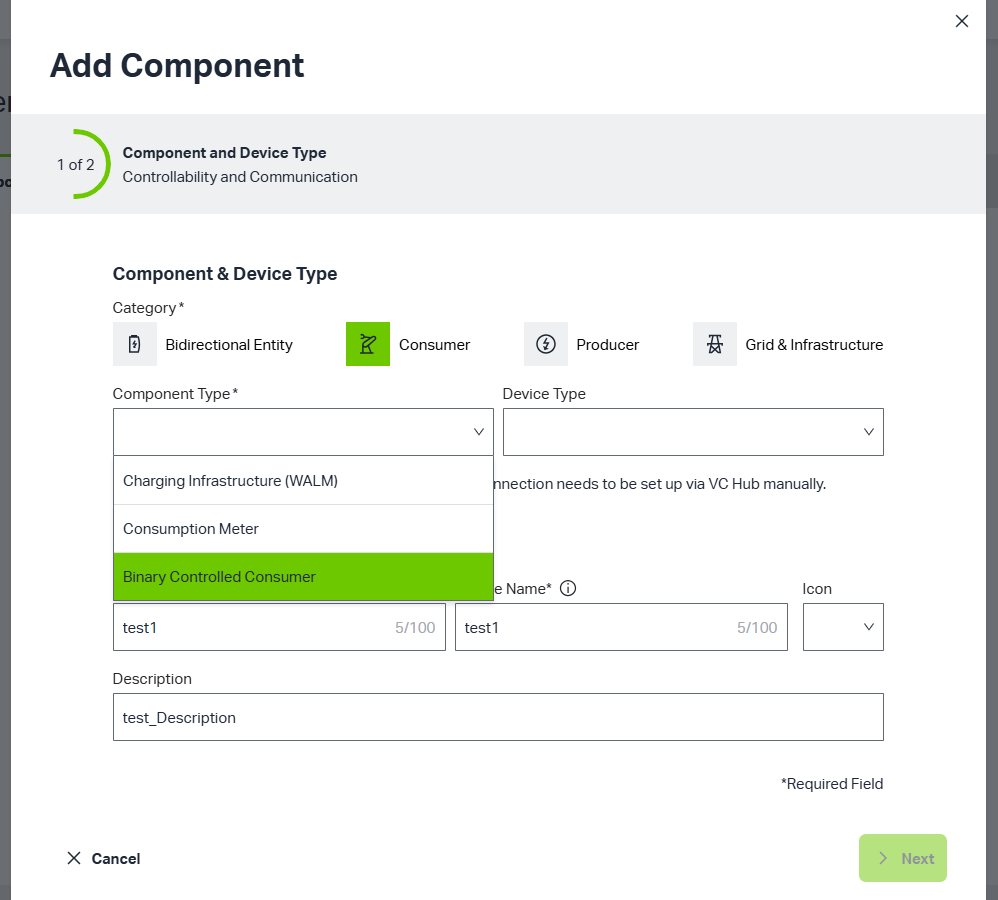
If User select special device type, user have to fill in neccessary device infomation in second page to connect device.
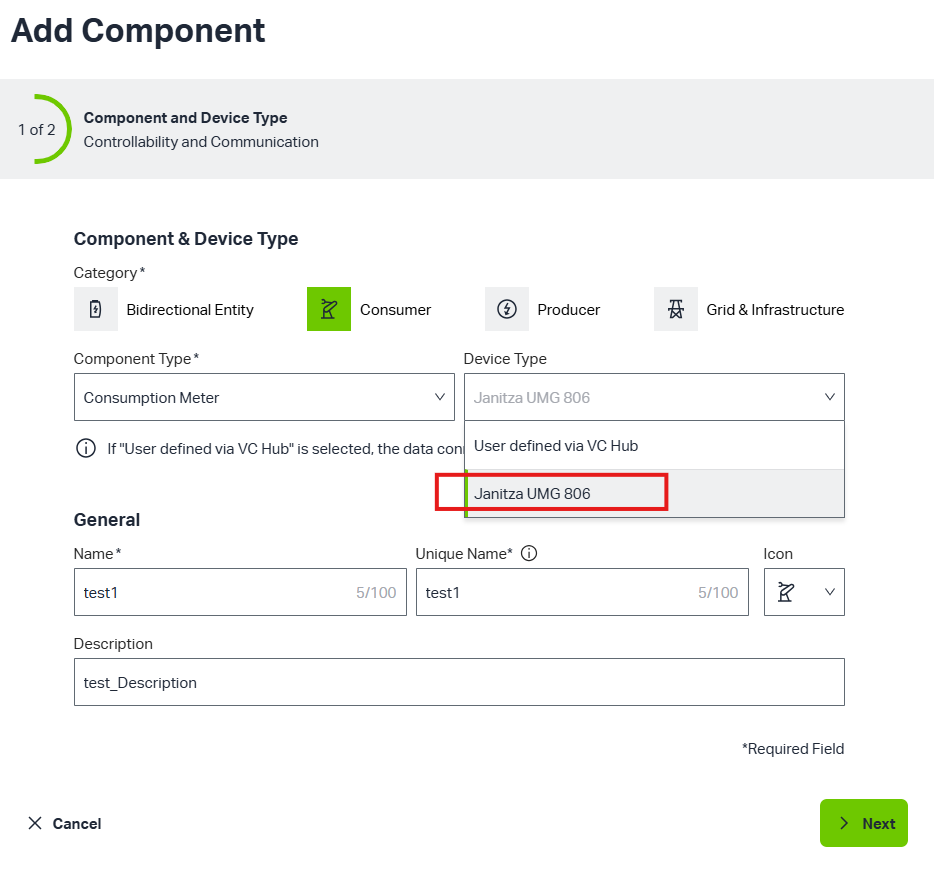
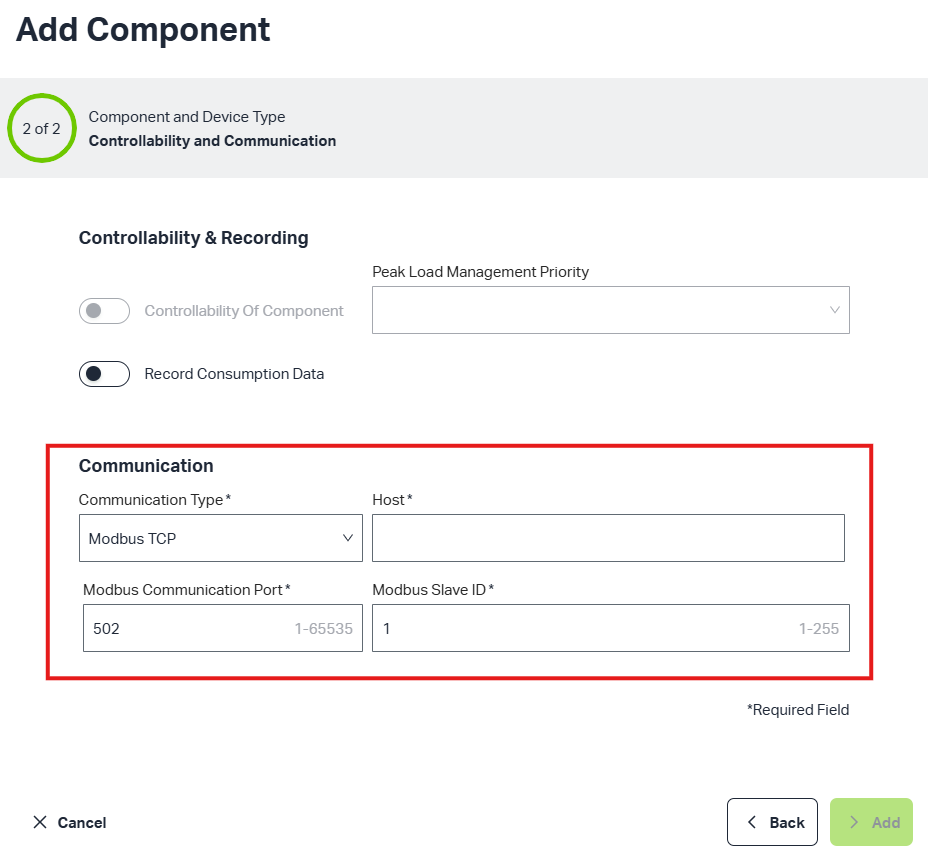
For Consumer type components,there is a 'Record Consumption Data' button, if enables it, the cosumption will add into All Consumption by clicking 'Reporting'
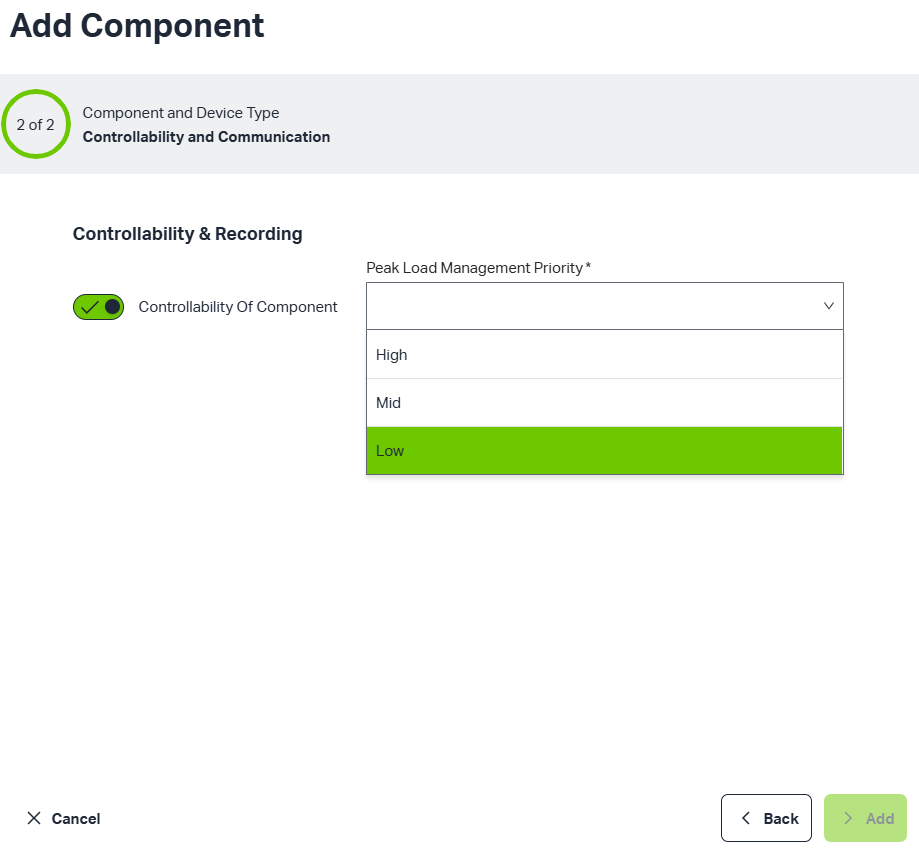
For other types components, there is a 'Controllability Of Component' button, if enables it, user can select priority, and system will controll the component
Right-click a component, user can edit or delete the component.
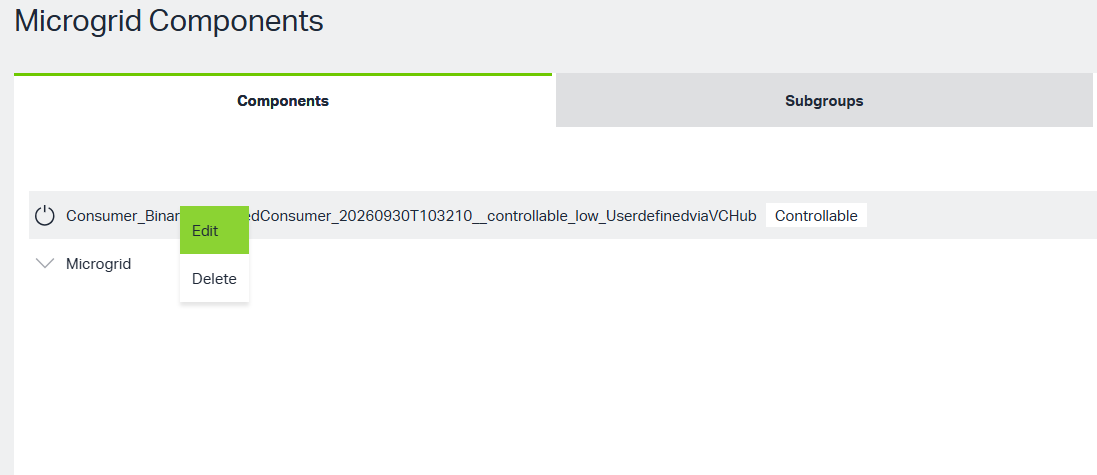
Click 'Edit' button, user can modify all info except Category and Component Type
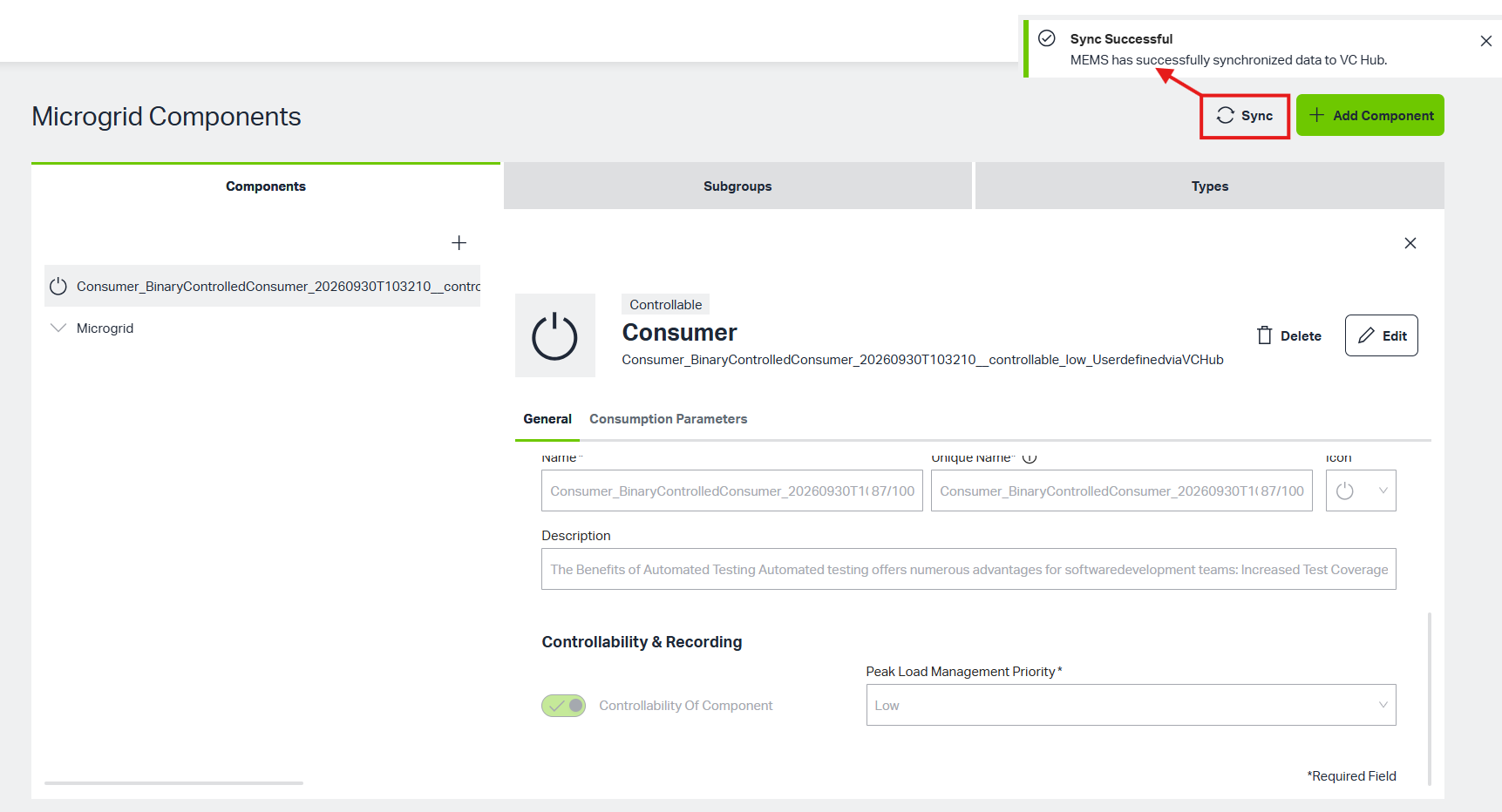
Click 'Sync' button, if component sync into VC Hub successfully, there will a prompt
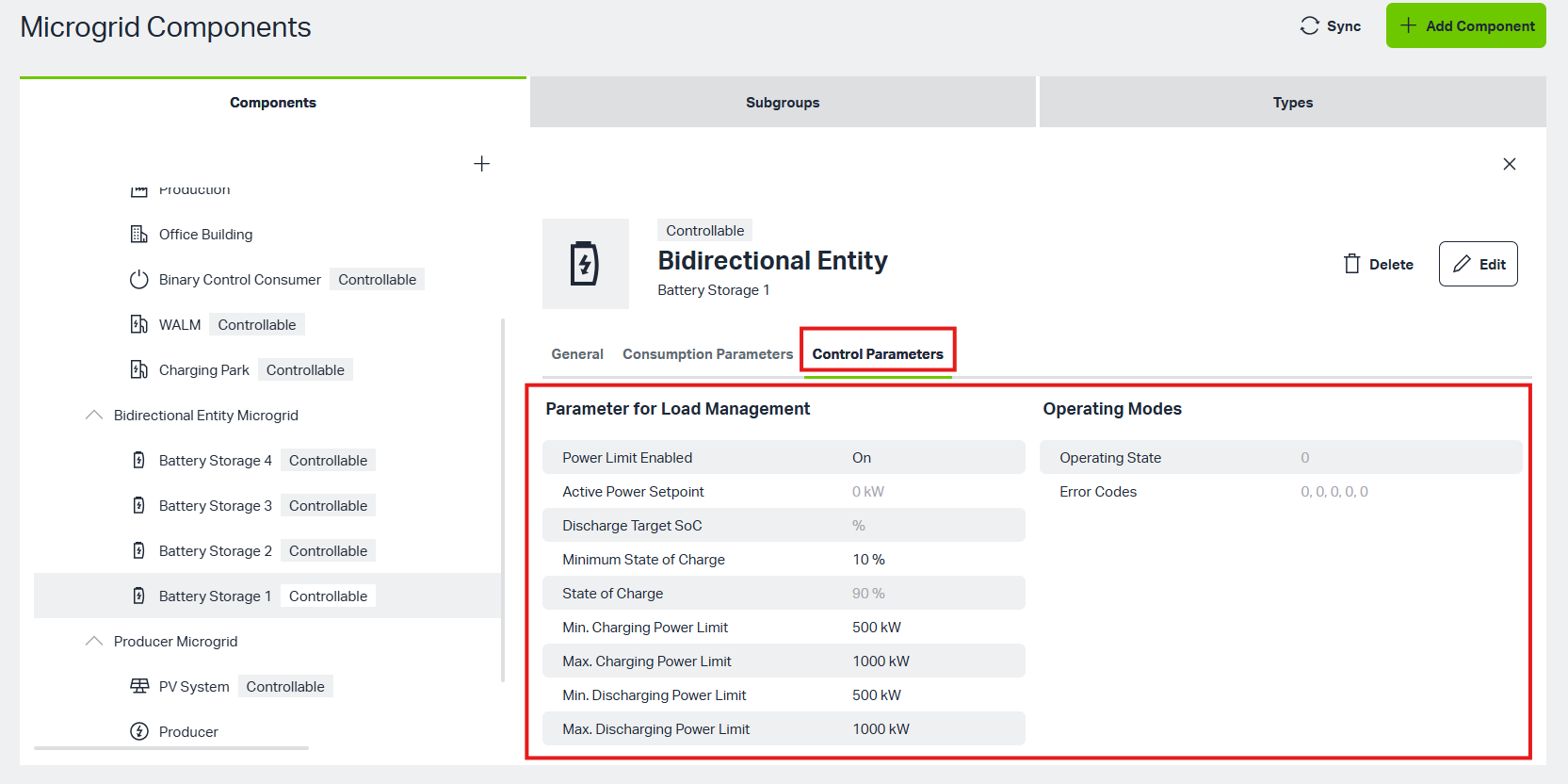
Click component, component's detail page will display.
The General column will show all kinds of information about the component. Click the edit button to modify it, and click the delete button to remove the component. When the component is connected to a real device, you can check various parameters in the consumer parameter column.
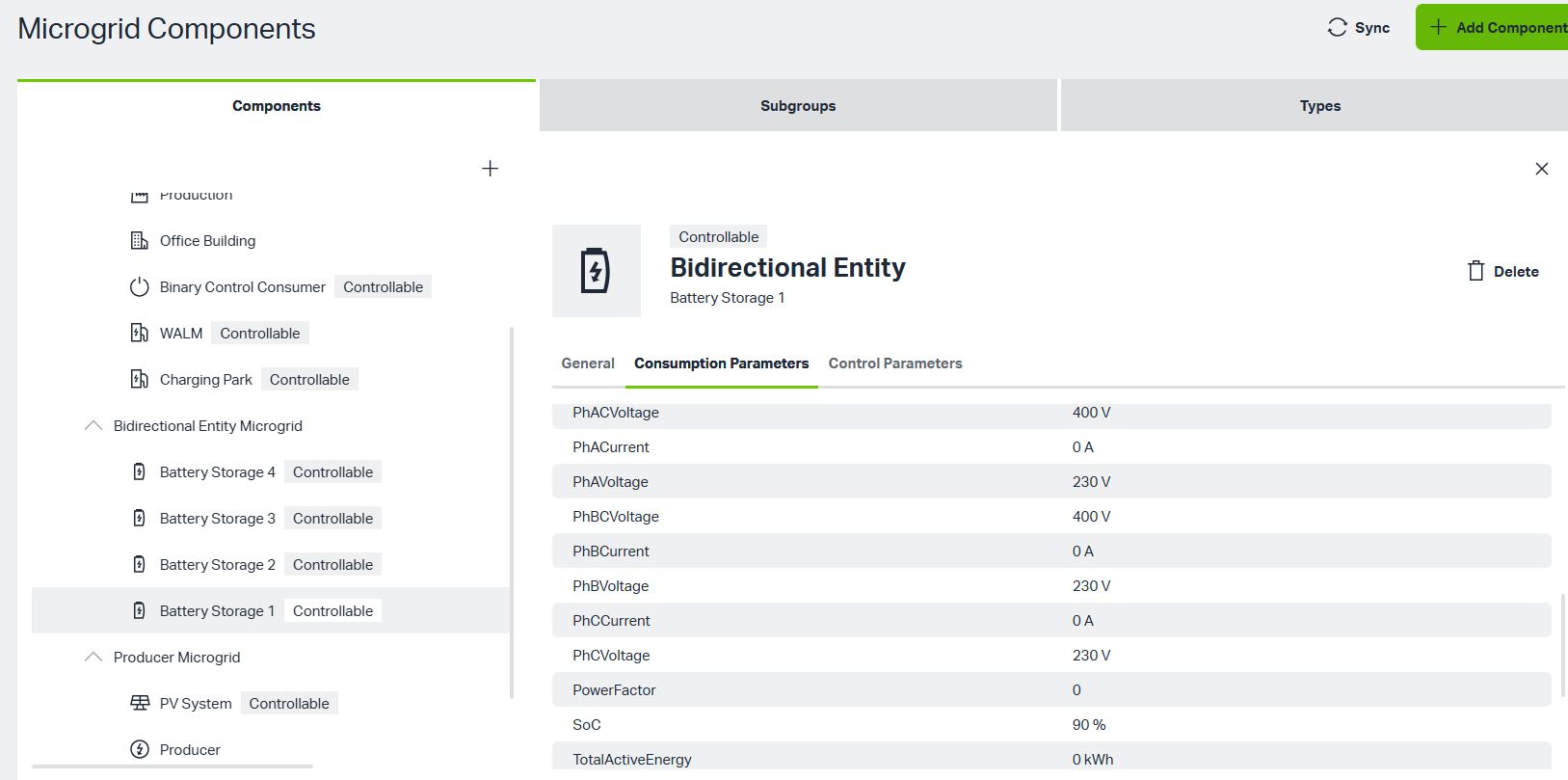
For Charging Infrastructure (WALM), Consumption Meter and Battery Storage components, there will be an extra column for the control parameter
3. Subgroups
Click 'Subgroups' tab, click 'Add Subgroups' button, user can create different subgroup by selecting types
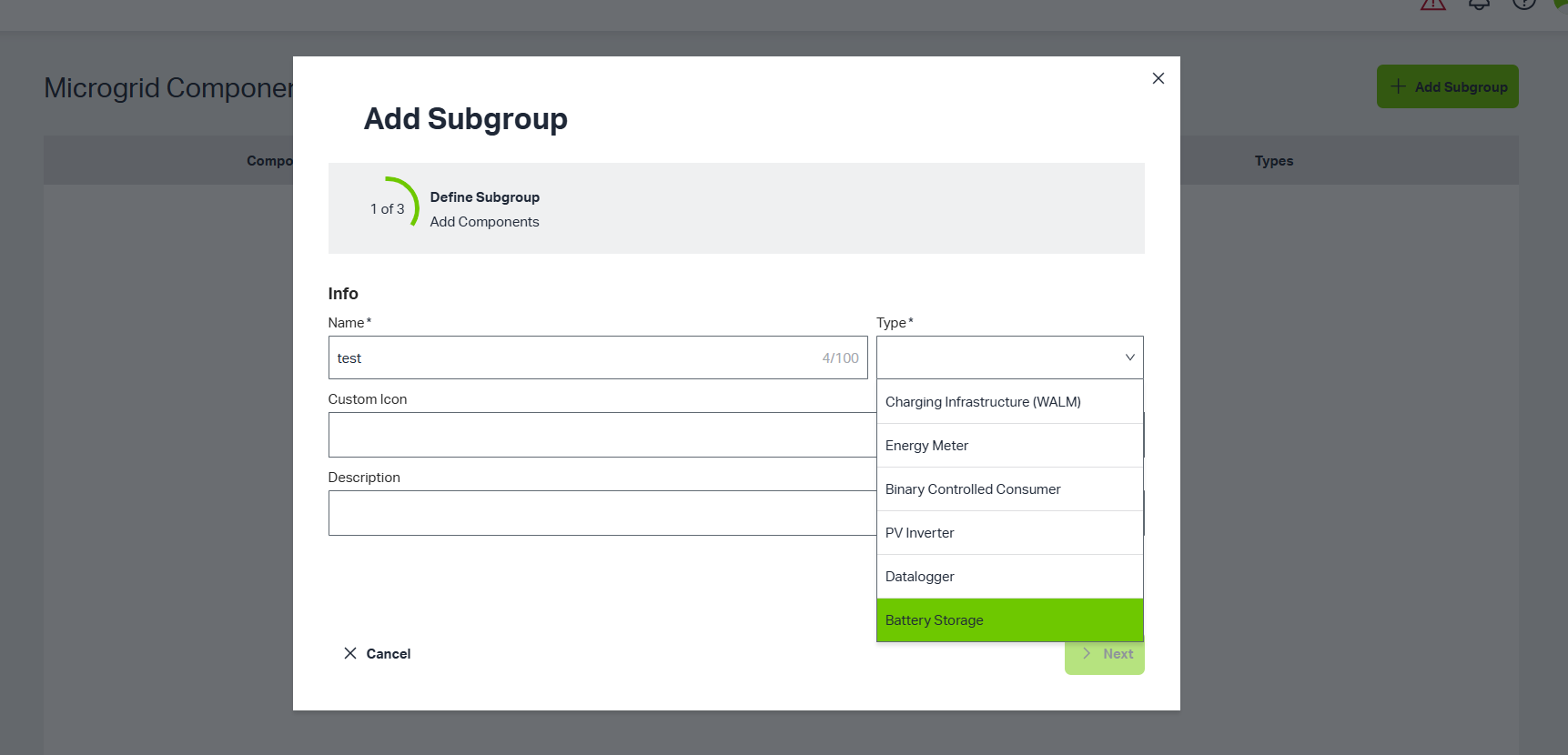
Fill in all kinds info, click 'Next' button, user can select existed components.
When the subgroup type is Energy Meter, an extra Subgroup field appears so that the user can select a sub-subgroup.
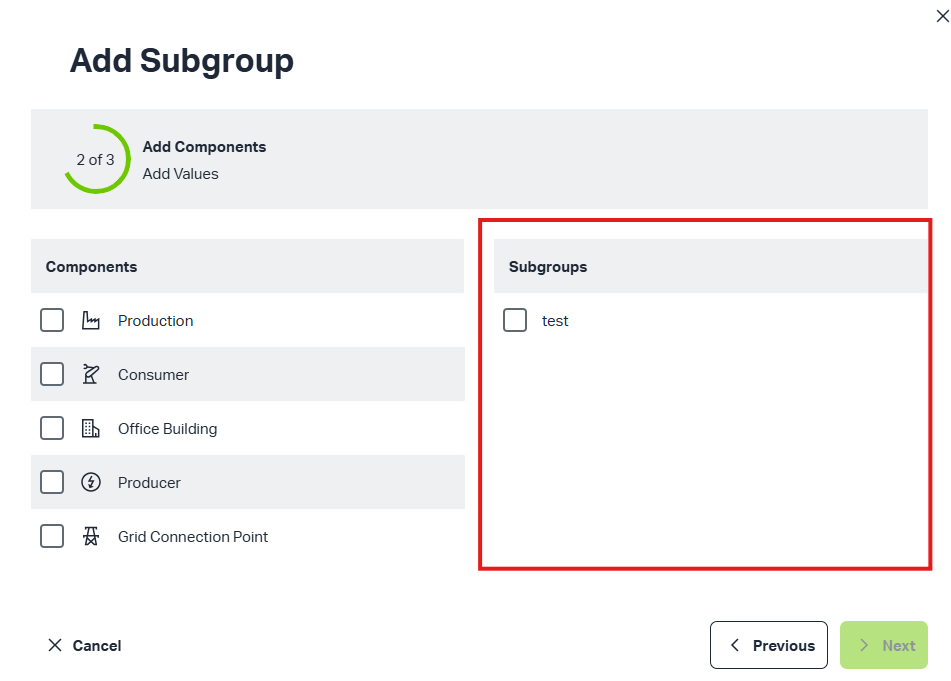
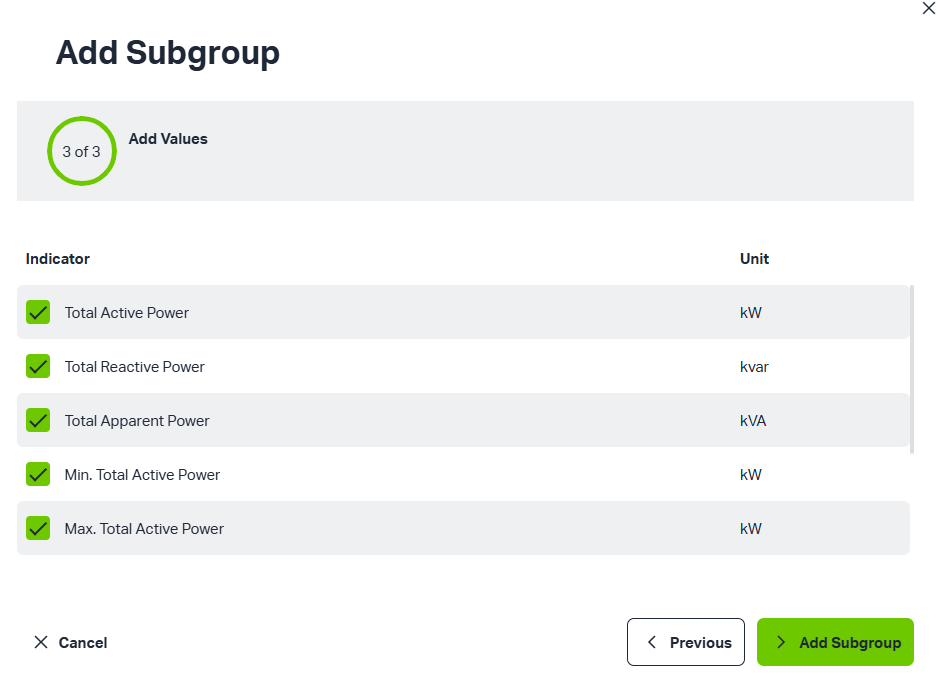
After selecting components or subgroups, click 'Next' button, user can select indicator for Subgroup.
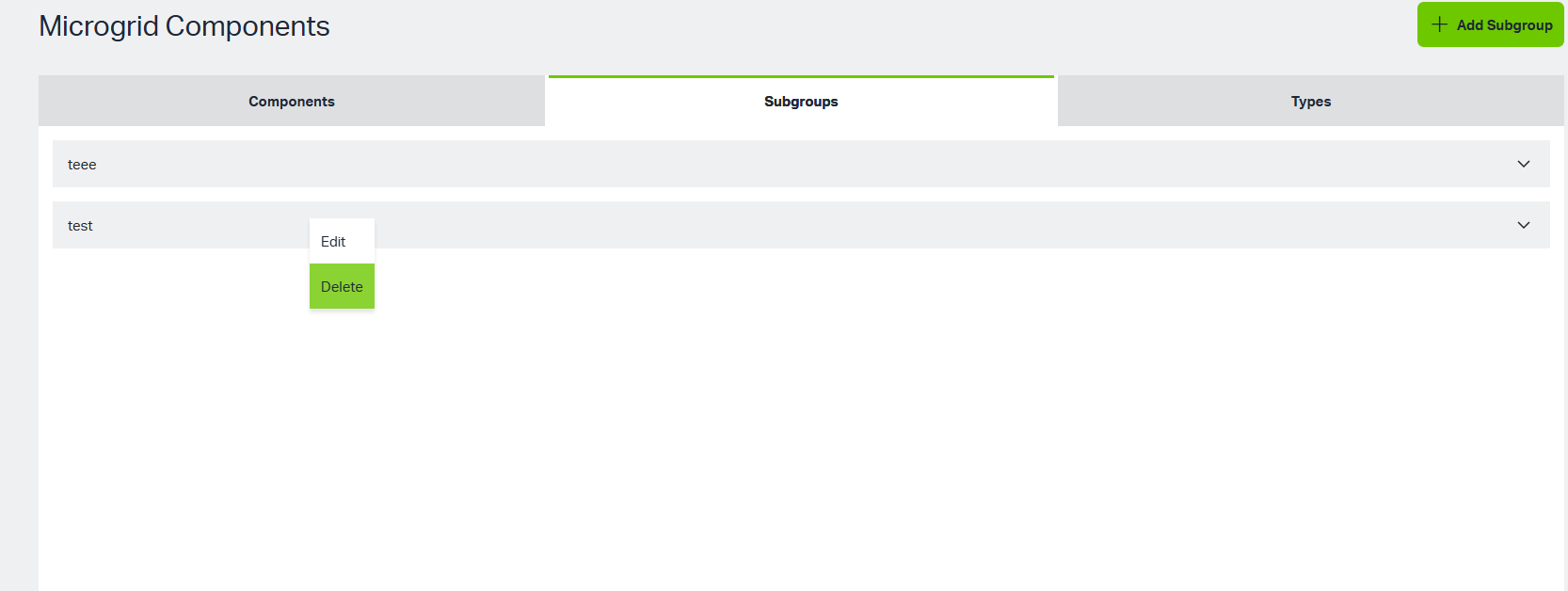
Right-click a subgroup, user can edit or delete the subgroup.
Types
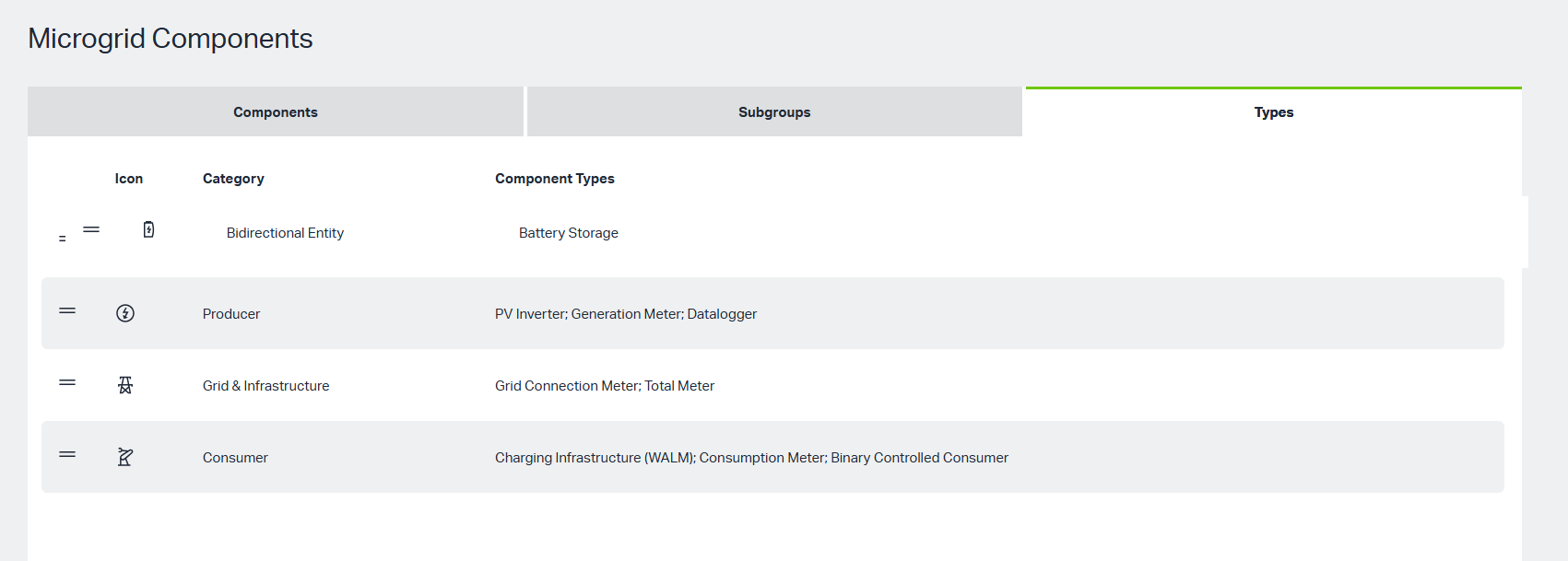
Click 'Subgroups' tab, Here displays different categories and corresponding component types.
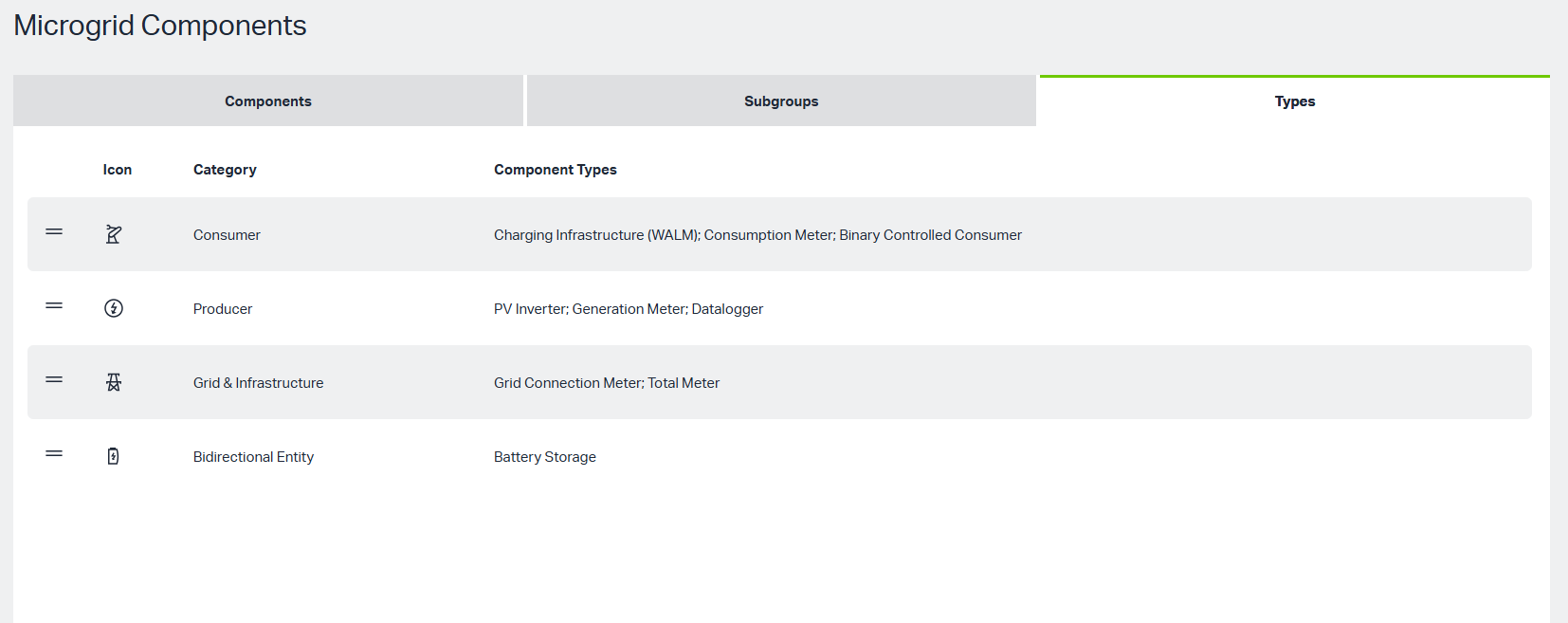
Dragging different categories will also change the order of categories on the Add Component interface.