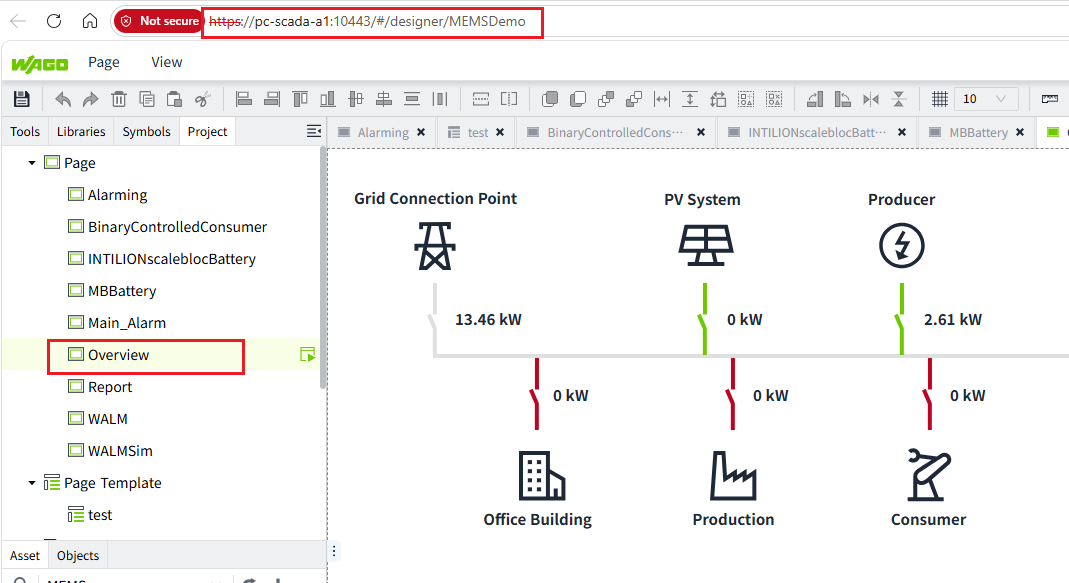
Configuration
VC Hub side:
1. Create a Client Id to use VC Hub as its identity provider to authenticate its end user.
Click Security >> OIDC Server(Open API) 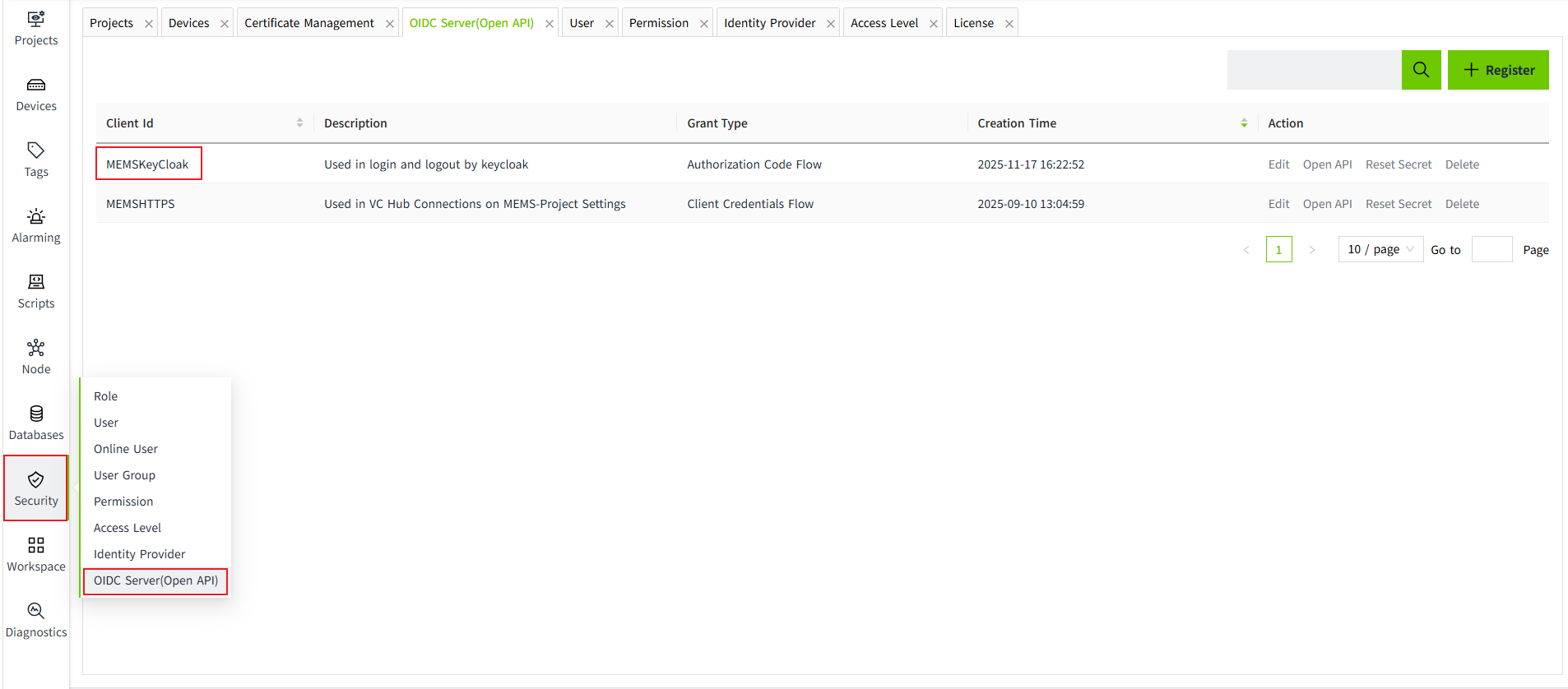 For more details, users can refer to OIDC Server for the VcHub interface configuration
2. Create a Client Id to use VC Hub Connections by making Open API requests from its backend.
Click Security >> OIDC Server(Open API) 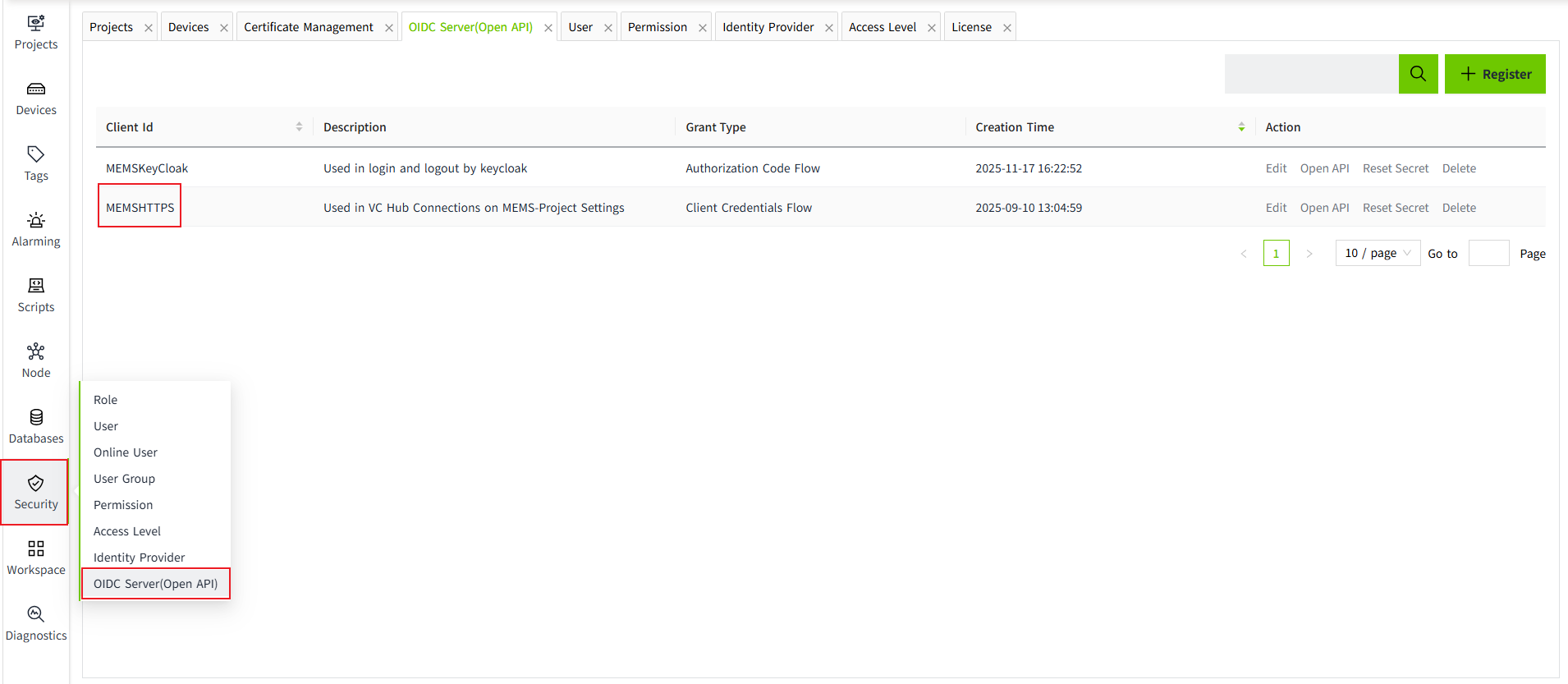 For more details, users can refer to OIDC Server for the VcHub interface configuration
3. Create a Role
Click Security >> Role 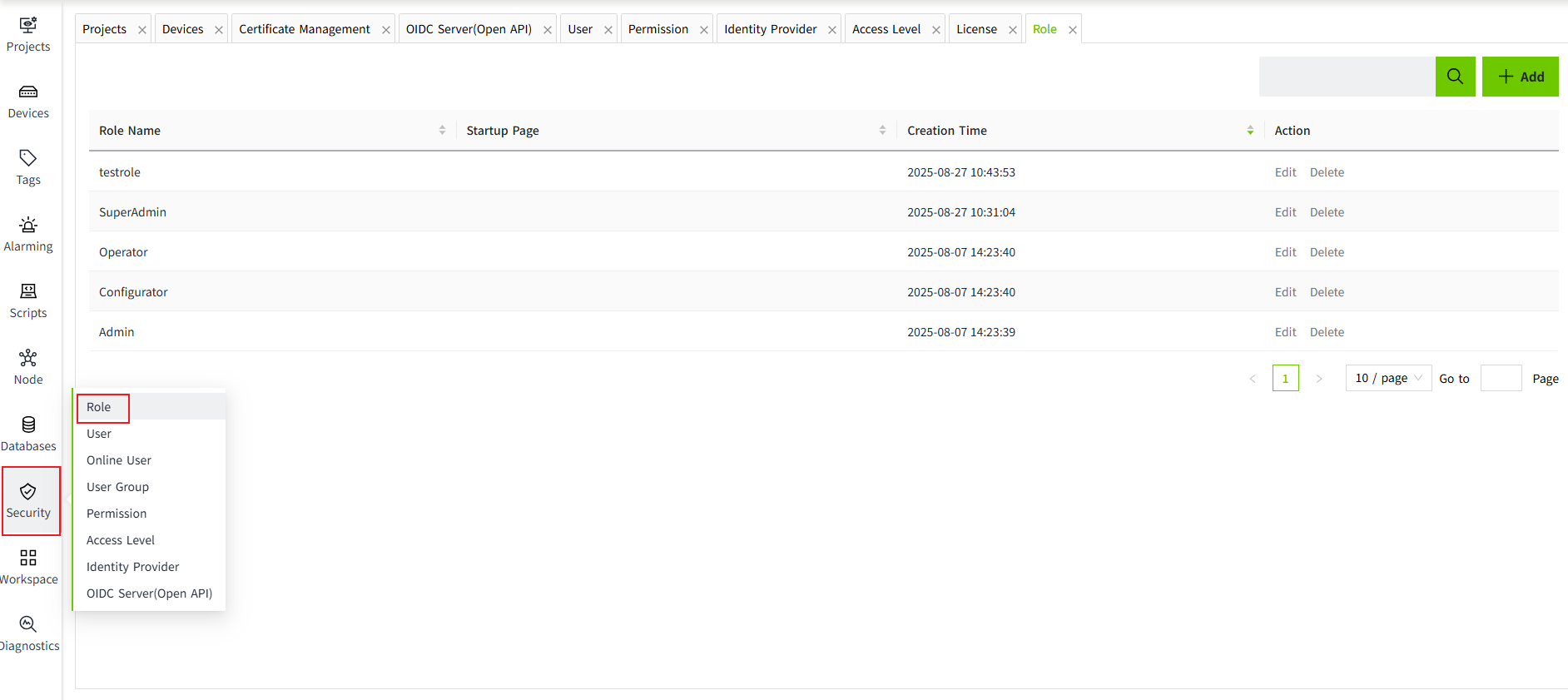 For more details, users can refer to Create Roles for the VcHub interface configuration
4. Create a user
Click Security >> User 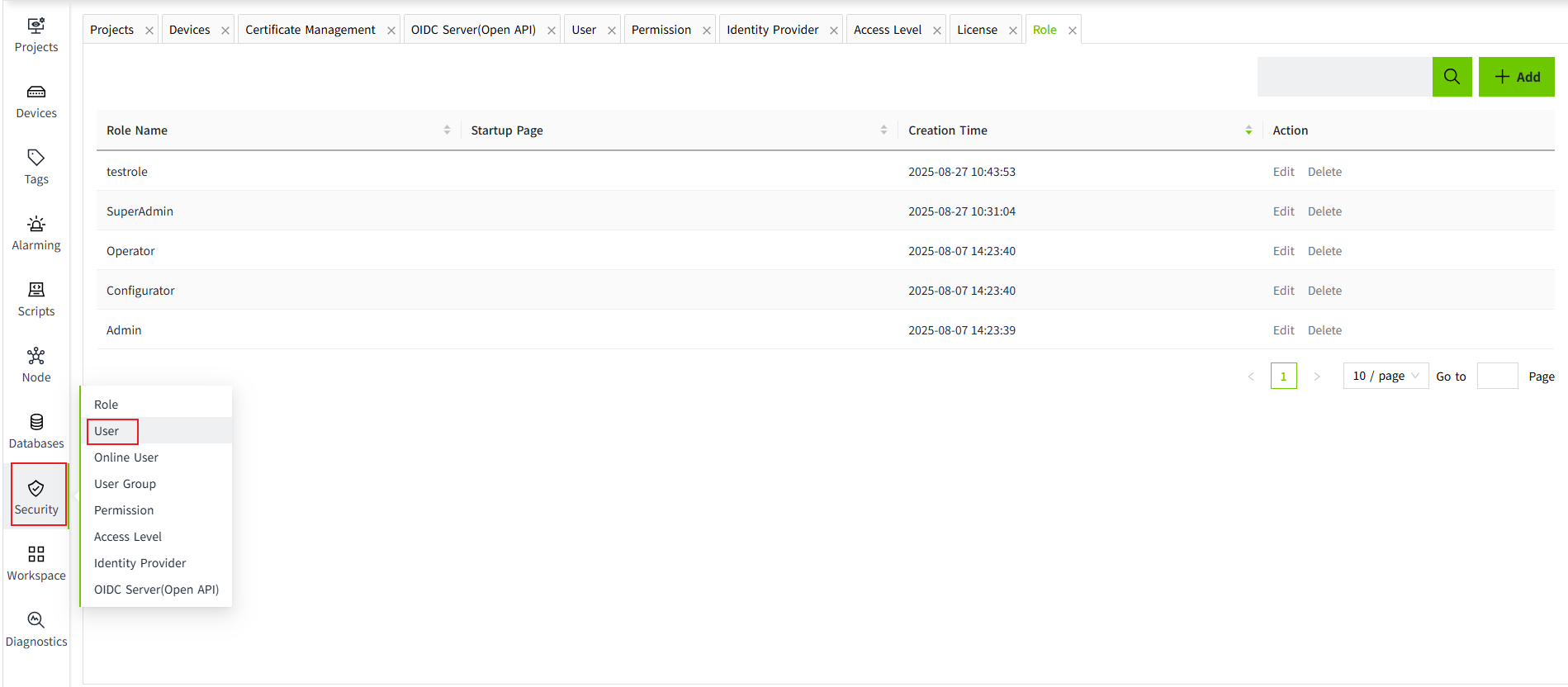 For more details, users can refer to Create Roles for the VcHub interface configuration
5. Create a Project
Click Projects >> Project 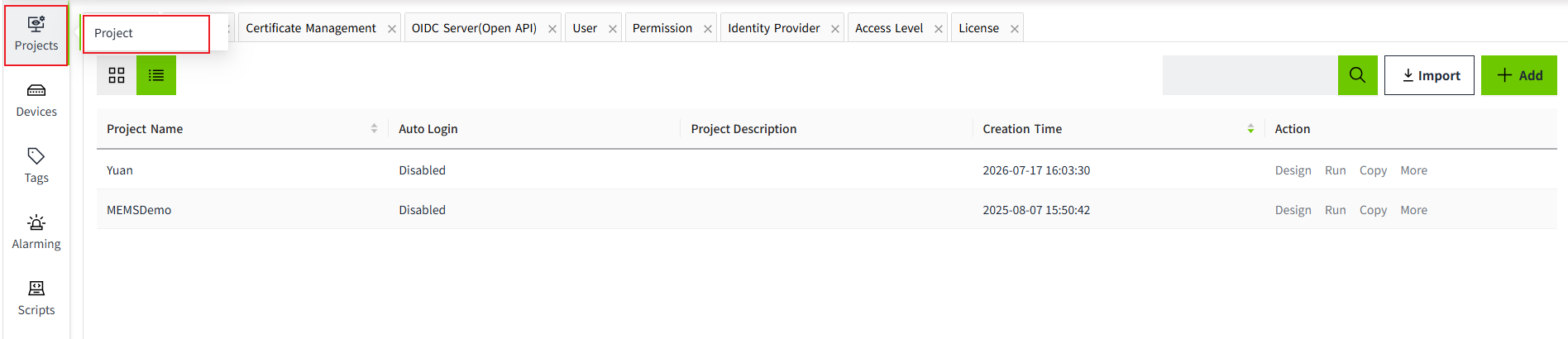 For more details, users can refer to Create Projects for the VcHub interface configuration
6. Design different pages
Click Projects >> Project >> Design >> New Page 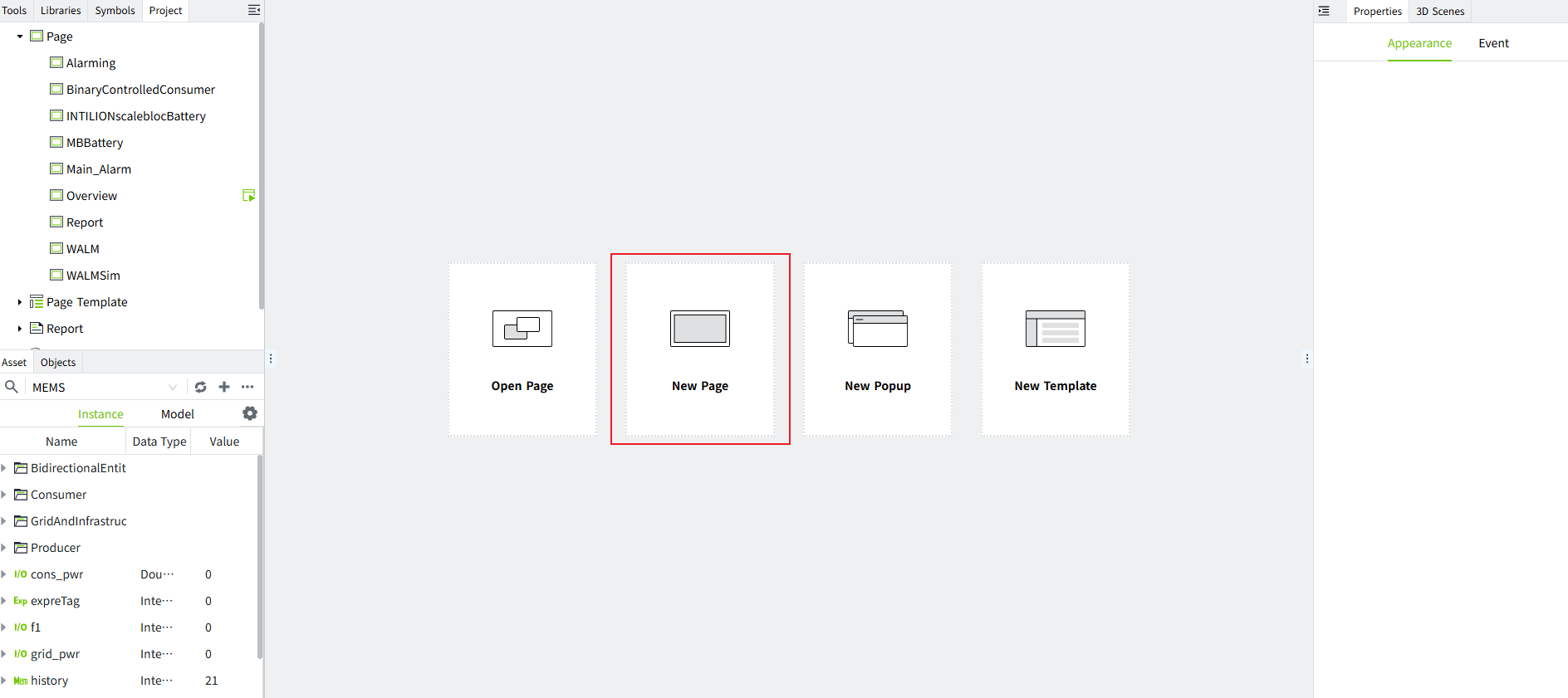 For more details, users can refer to Create Pages for the VcHub interface configuration
MEMS Side:
1. Configure page on MEMS
After logging into MEMS system, Click left navigation siderbar Project Settings >> VC Hub Connections tab 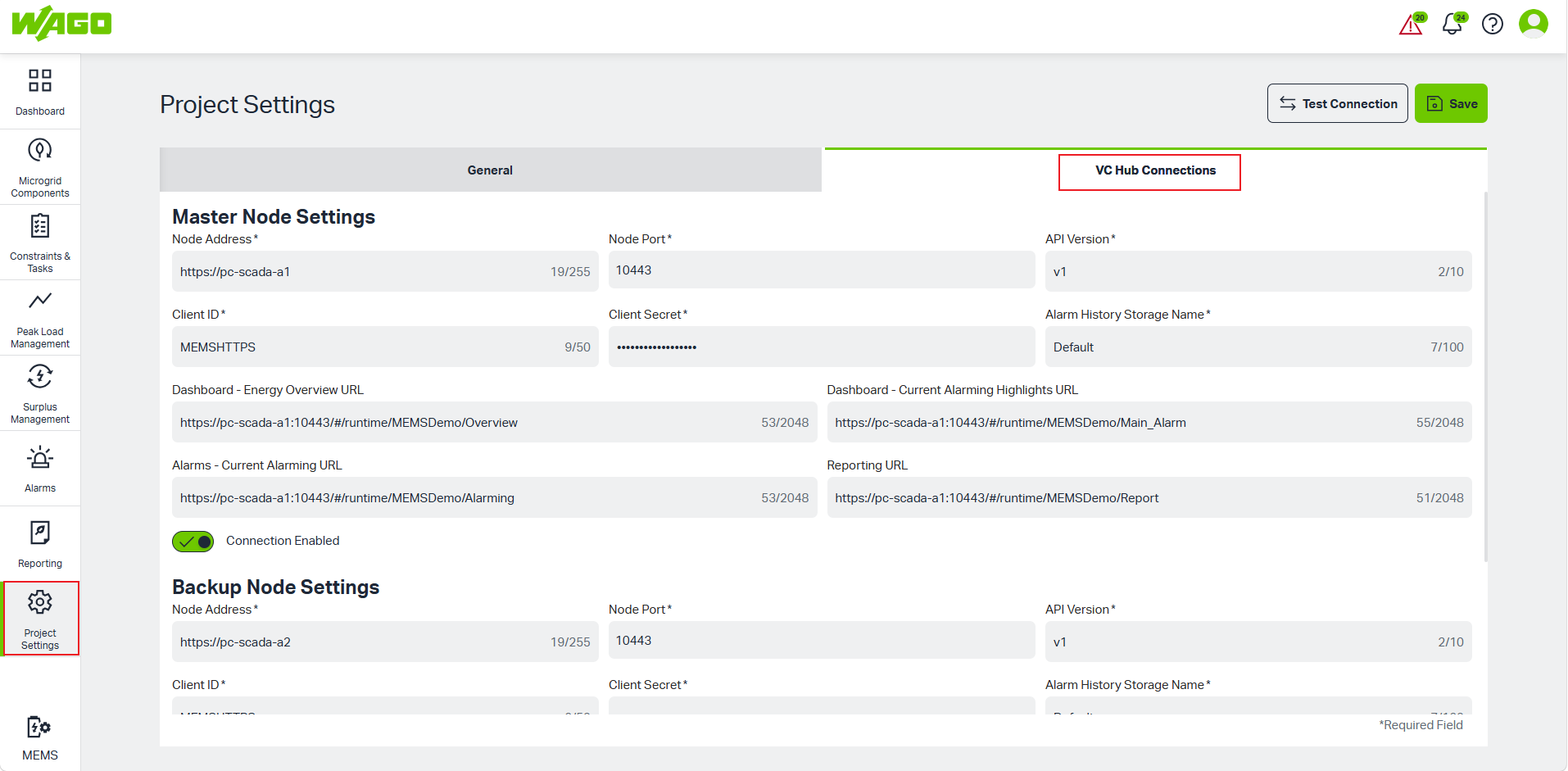
1.1 Master Node Settings
This area is used to configure the primary communication node for the system.
Node Address*: Enter VC Hub server address.
Node Port*: Enter VC Hub communication port number, default value 10443.
API Version*: Enter the API version number, default value v1.
Client ID*: The client identifier used for authentication, enter Client Id which created on VC Hub.
Client Secret*: The password used for authentication, enter Secret which created on VC Hub.
Alarm History Storage Name*: Specify the name of the storage repository for alarm data, default value Default.
Dashboard - Energy Overview URL: Direct access link for the Dashboard >> Energy Overview page.
Dashboard - Current Alarming Highlights URL: Link for the Dashboard >> Current Alarms page.
Alarms - Current Alarming URL: Link for the Alams page.
Reporting URL: Link for the Reporting page.
Connection Enabled: Toggle switch. Green indicates Enabled (On), while gray indicates Disabled (Off). 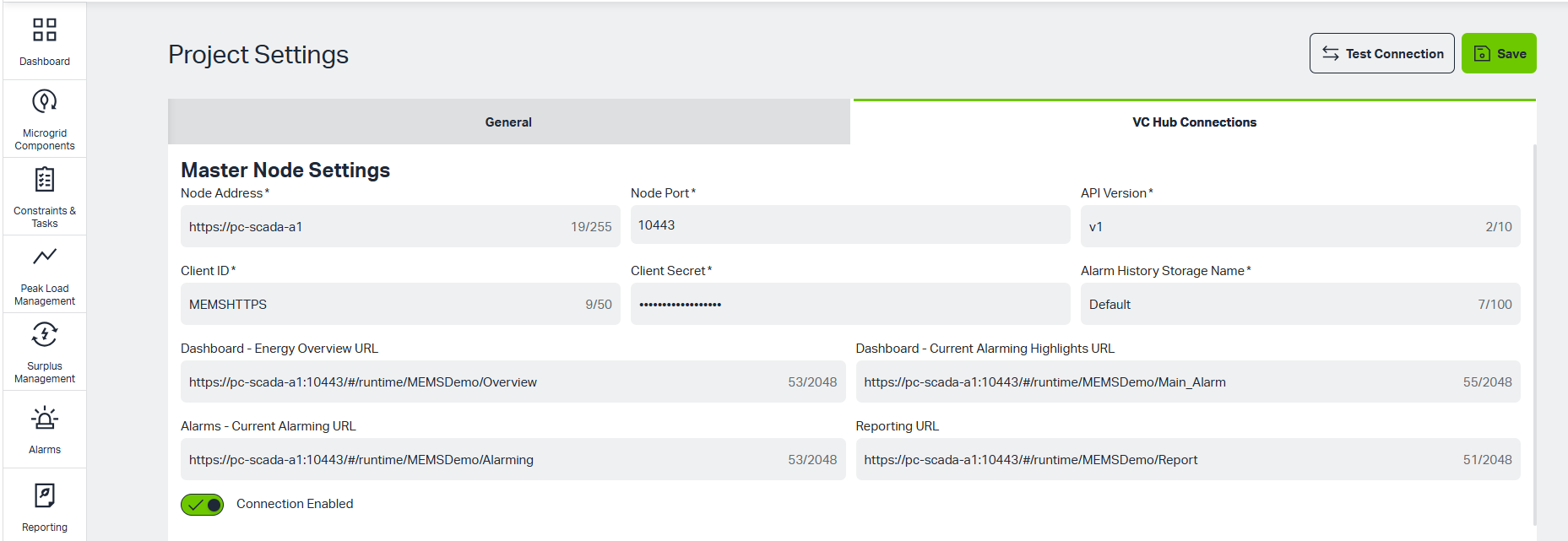
Users can copy the url from VC Hub, replace "designer" to "runtime", append "/" Page name