IEC104 TLS
This page describes how TLS works for IEC104 devices in VC Hub, including TLS configuration, default port behavior, certificate validation rules during enable/start, and trust-store dialog behavior.
When to Use TLS
Use TLS for IEC104 devices in the following scenarios:
- Communication crosses untrusted networks (for example, public WAN, shared enterprise network, or wireless segments).
- Security or compliance requirements require encrypted transport and certificate-based endpoint validation.
- You need to reduce the risk of eavesdropping and man-in-the-middle attacks on control and telemetry traffic.
- The project uses remote access, multi-site deployment, or third-party network infrastructure where link security cannot be guaranteed.
Enable TLS for an IEC 104 Device
- Open Devices -> IEC 104 and click Add (or Edit an existing device).
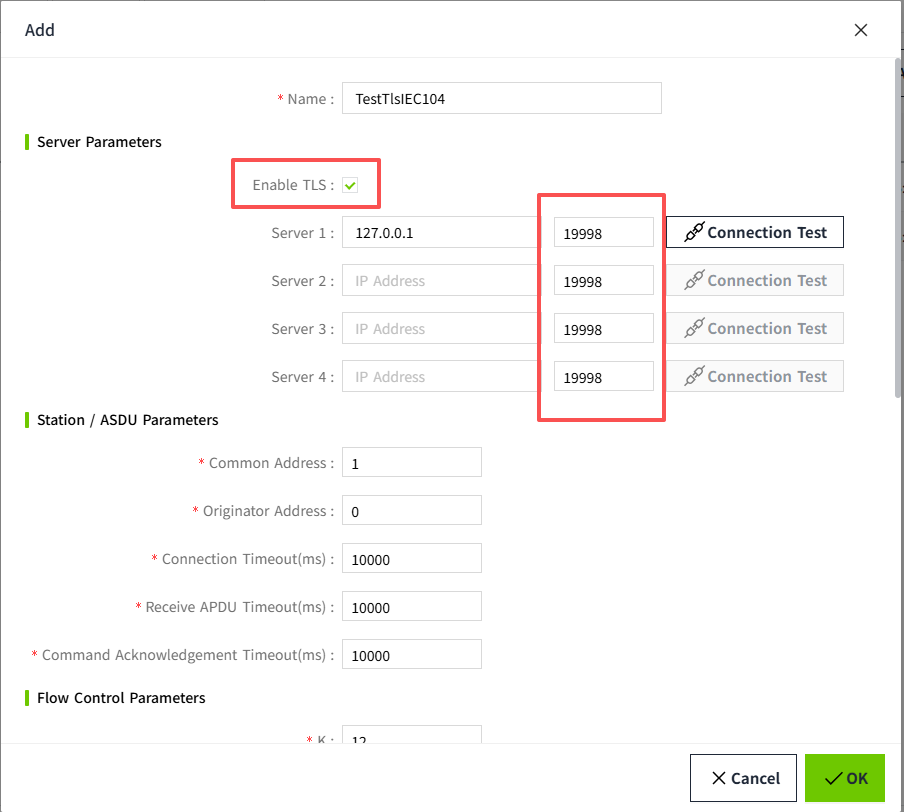
- Check Enable TLS.
- Configure server endpoints and ports.
- Save and enable the device.
Port Behavior with TLS
When Enable TLS is checked, VC Hub uses TLS-oriented default behavior:
- The TLS default server port is 19998.
- For empty server rows, port defaults are switched automatically:
- TLS enabled: default port is 19998.
- TLS disabled: default port is 2404.
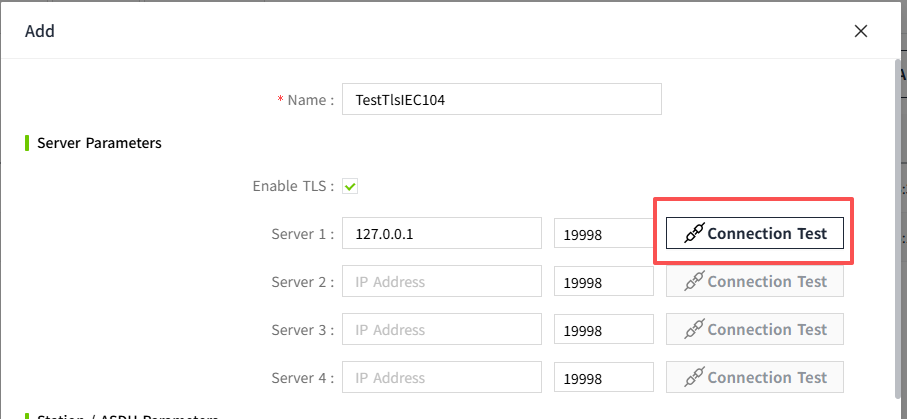
Test Connection with TLS
- The Test Connection action uses the current form values.
- If Enable TLS is checked, the request includes the TLS flag.
- If TLS is not checked, the request is sent as non-TLS.
Certificate Validation and Warning Prompt
When working with TLS-enabled IEC 104 devices, VC Hub checks the security certificate of the connected endpoint before allowing the device to start.
If there is a problem with the certificate, VC Hub will display a warning and prevent the device from being enabled.
When Does a Warning Appear?
A warning icon appears if:
- The certificate is not trusted
- The certificate is expired
In both cases, the device cannot be started until the issue is resolved.
Warning Icon
A warning icon is displayed next to the affected device.

To view details:
- Click the warning icon
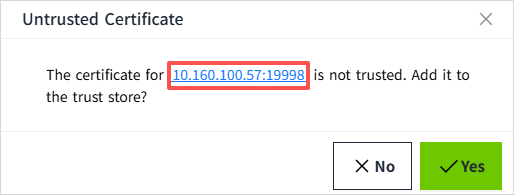
- The "Untrusted Certificate" dialog opens
Viewing Certificate Details
Inside the dialog:
- Locate the endpoint IP address
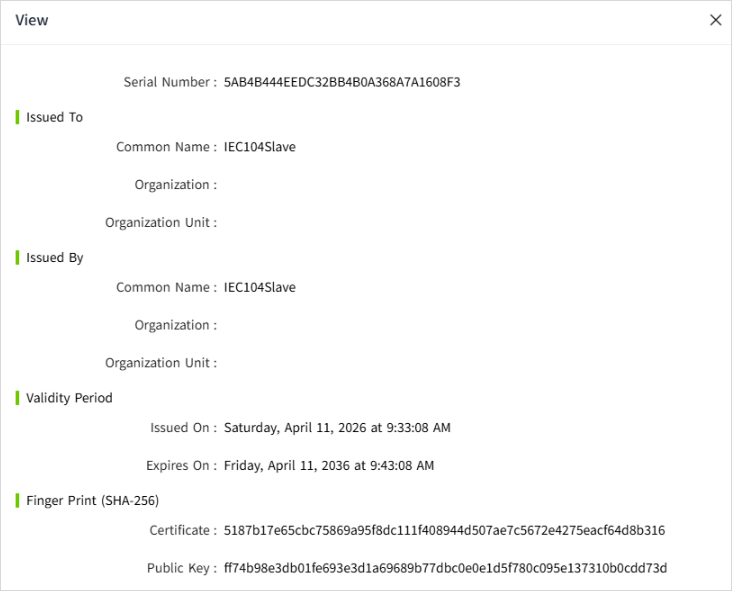
- Click the IP address
- A detailed view of the certificate is displayed
What You Can Do
Option 1: Click Yes
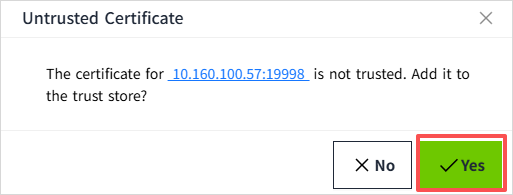
If the certificate is not trusted:
- The certificate will be added to the trust store
- VC Hub will check the certificate again
- If valid, the device can be enabled
If the certificate is expired:
- The certificate will not be accepted
- A message will inform you that the certificate is expired
- The device will remain disabled
Option 2: Click No
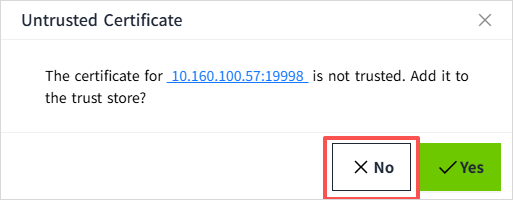
- The dialog will close
- No changes are made
The device will remain disabled in both cases:
- Untrusted certificate
- Expired certificate
Notes
- TLS-enabled devices must pass certificate validation before they can start.
- Endpoint status in View can show Active (currently connected endpoint) and Standby (configured but not currently used endpoint).
- The warning dialog provides different messages for not trusted and expired certificate states.
- For stable TLS operation, ensure endpoint certificates are valid (not expired) and trusted before long-running communication.