Animation
By applying animation effects sensibly, users can enjoy a more efficient, intuitive, and pleasant interface interaction experience.
In VC Hub, when the control has animation properties, the "Animation" column will be displayed in the property bar on the right. Click the setting button to set the animation.
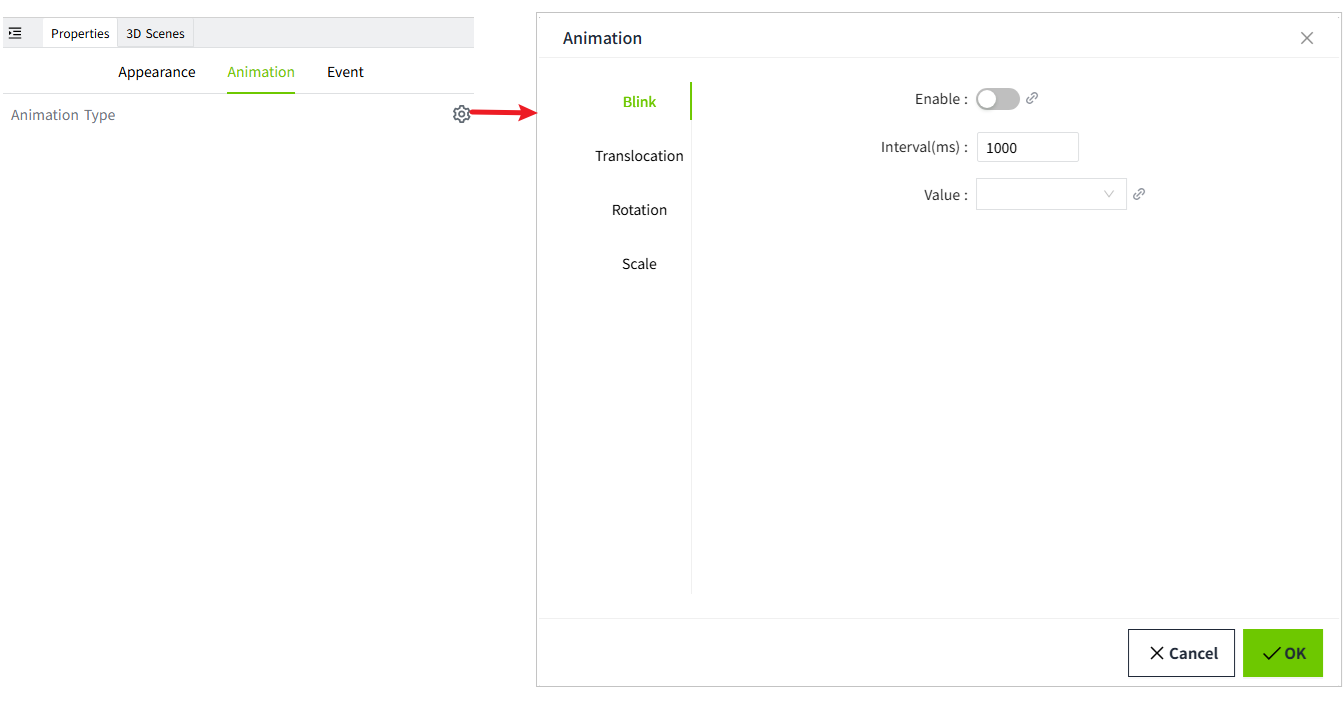
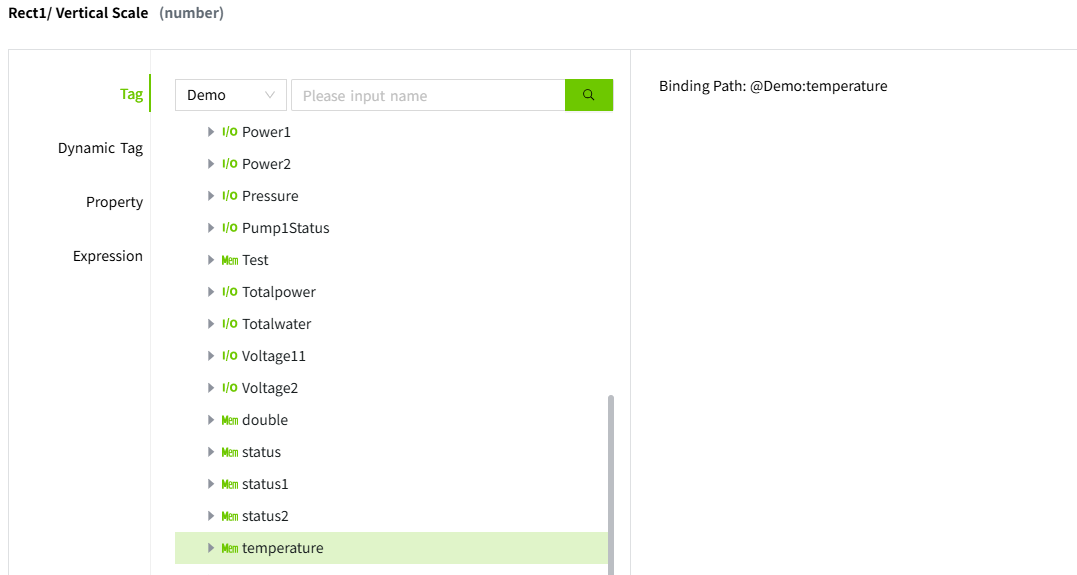
Value can be configured as either a static value or a binding. Similarly, the Enable state also supports binding. Through binding, the enabled state of the animation can change dynamically based on the value of a tag or expression, rather than being manually fixed to "enabled" or "disabled".
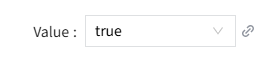
Static value:
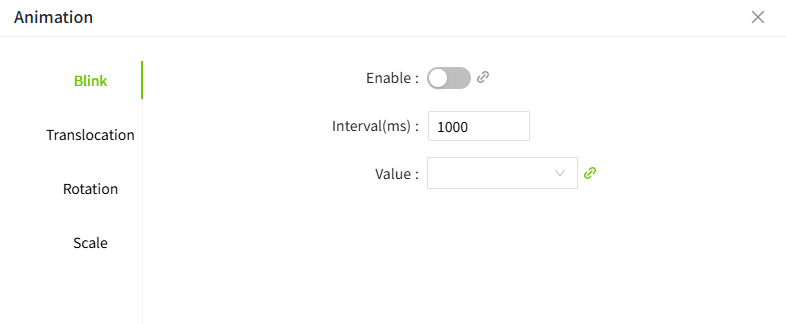
Binding:
After binding is completed, the binding information can be viewed by clicking the icon.

Animation Types
VC Hub supports the following animation types:
Blink
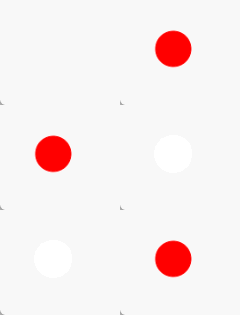
The blinking effect is easy to attract attention and is often used to alarm when abnormal conditions occur.
Example
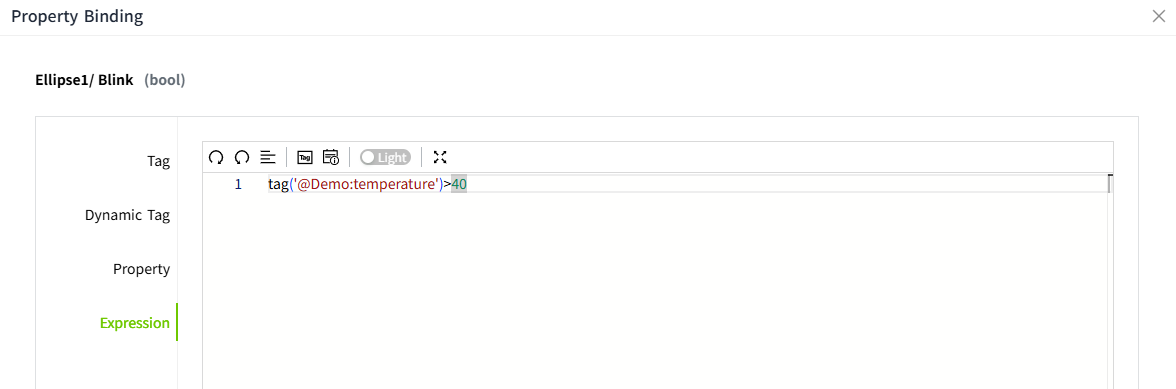
Create a circular control that represents an alarm indicator light that blinks when the value of "temperature" is greater than 40.
| Properties | Value |
|---|---|
| Fill Color | ff0000 |
| Border Color | ff0000 |
| Enabled Blink | Enable |
| Interval | 500 ms |
| Value | Expression: tag('@Demo:temperature')>40; Note: This animation only takes effect when the value is a Bool value. |
Translocation
Create dynamic effects by changing the position of the control, which can be moved horizontally and vertically.
Example
See where objects are traveling on the conveyor belt.
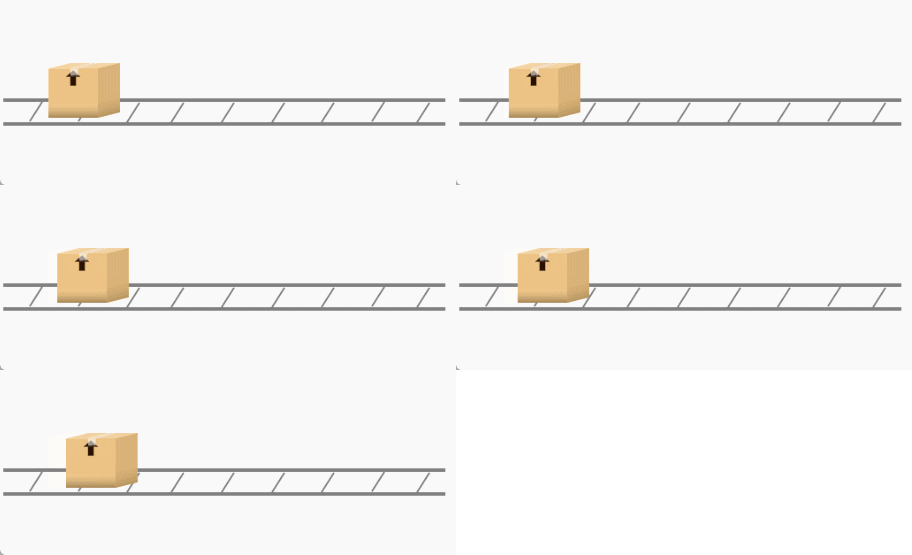
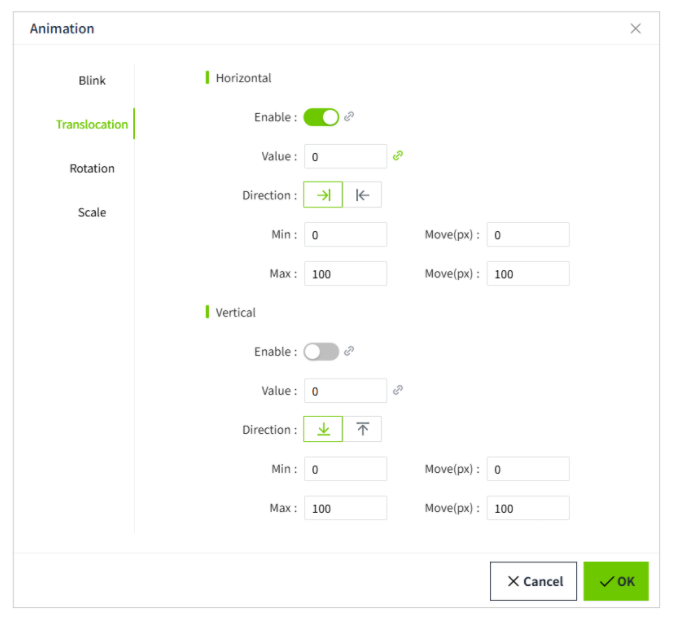
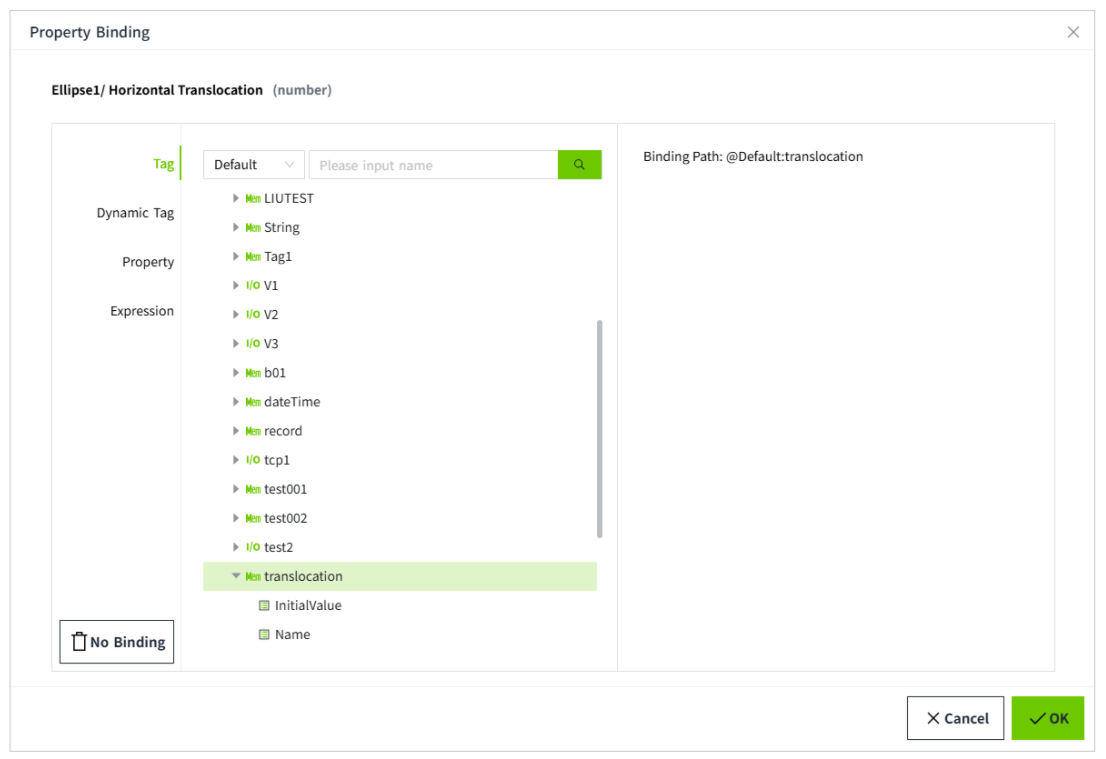
| Properties | Value |
|---|---|
| Horizontal Enable | Enable |
| Value | Tag: Default.translocation |
| Direction | From left to right  |
| Min | Used in combination with "move" . Set the minimum value at which the animation takes effect, and the moving distance of the object at the minimum value.  |
| Max | Used in combination with "move" . Set the maximum value at which the animation takes effect, and the moving distance of the object at the maximum value.  |
Rotation
Use a static value to simulate the rotation of the fan blade.
Example
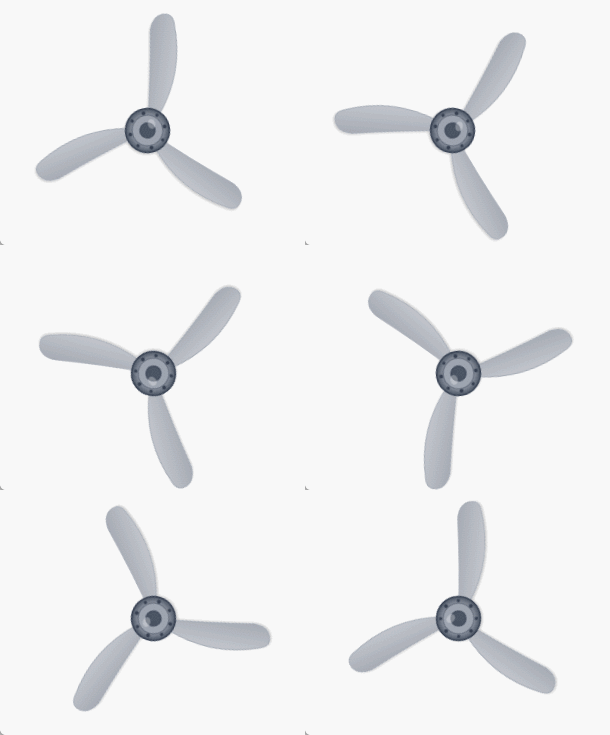
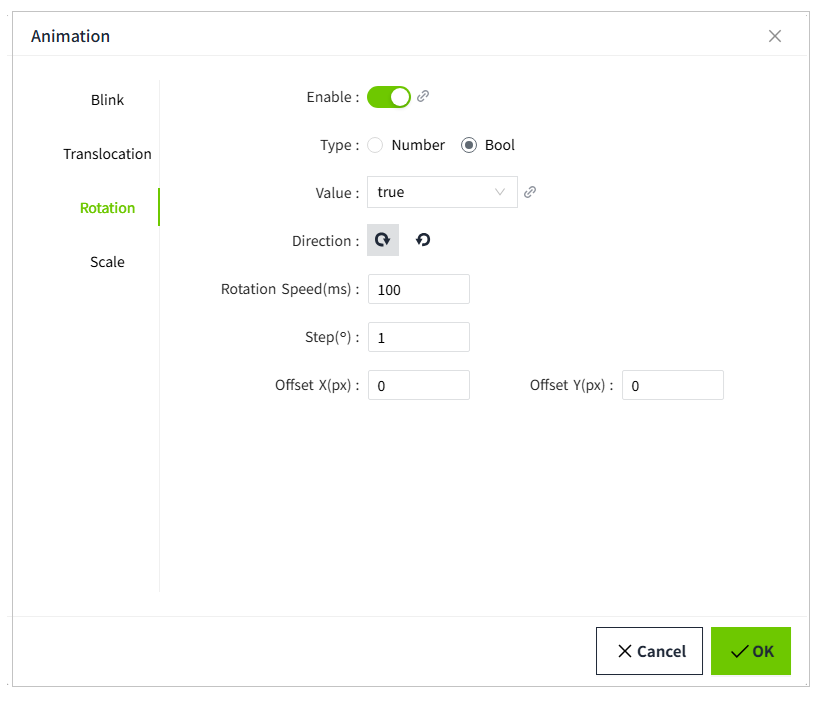
| Properties | Value |
|---|---|
| Enable | Enable |
| Value | True |
| Type | The result type of the value. Divided into number and bool. Number: 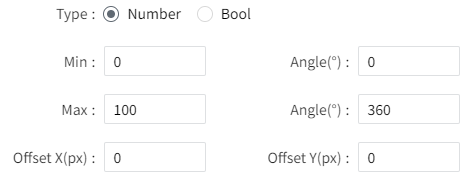 Bool: 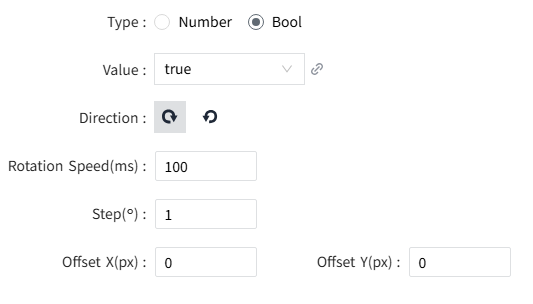 |
| Min | When the type is number, this parameter is displayed. Used in combination with the "Angle" . Set the minimum value at which the animation takes effect, and the rotation angle of the object at the minimum value.  |
| Max | When the type is number, this parameter is displayed. Used in combination with the "Angle" . Set the minimum value at which the animation takes effect, and the rotation angle of the object at the minimum value.  |
| Offset X | When the type is number, this parameter is displayed. Used to set the distance by which the rotation center point is offset to the right. |
| Offset Y | When the type is number, this parameter is displayed. Used to set the distance by which the rotation center point is offset downwards. |
| Direction | When the type is Bool, this parameter is displayed. Indicates the direction of rotation. |
| Rotatiion Speed | When the type is Bool, this parameter is displayed. Indicates how often to transfer. |
| Step | When the type is Bool, this parameter is displayed. Represents the angle of each rotation. |
Fill
By changing the value, the filling effect of the object is changed.
Example
The liquid level in the tank is constantly changing. Represent the jar as a rectangle.
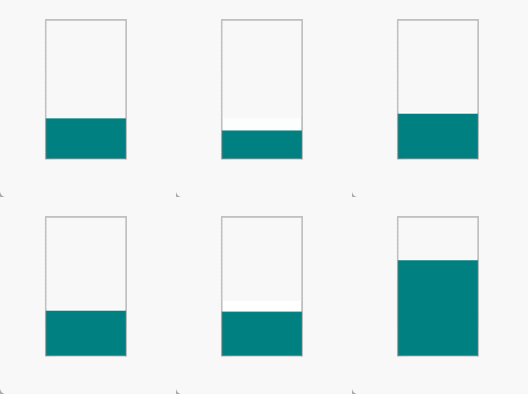
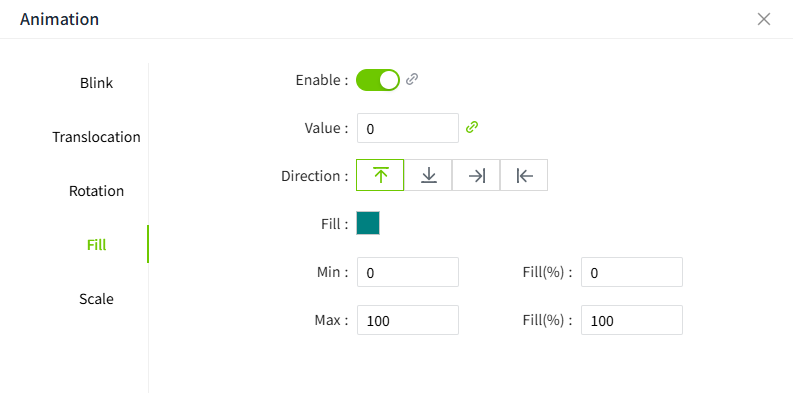
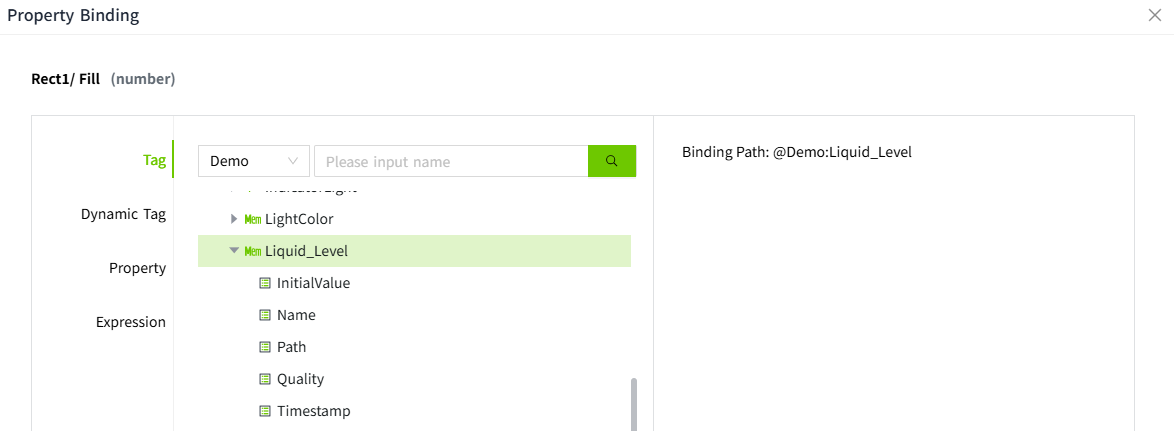
| Properties | Value |
|---|---|
| Enable | Enable |
| Value | Tags: Demo.Liquid_Level |
| Direction | The direction of the fill.  Fill from top to bottom.  Fill from bottom to top.  Fill from left to right.  Fill from right to left. |
| Fill | The fill color. |
| Min | Used in combination with the "fill(%)" . Set the minimum value at which the animation takes effect, and the filling ratio of the object at the minimum value.  |
| Max | Used in combination with the "filll(%)" . Set the minimum value at which the animation takes effect, and the filling ratio of the object at the minimum value.  |
Scale
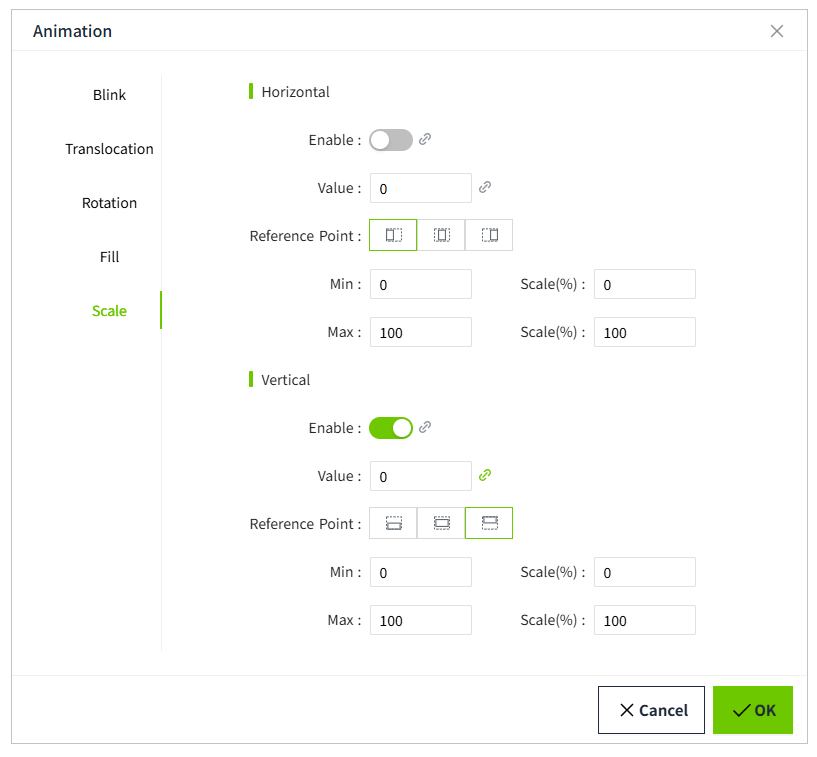
Through changes in value, the overall shape of the object is changed. Scale is possible in both horizontal and vertical directions.
Example
The mercury column of a thermometer changes as the value changes.
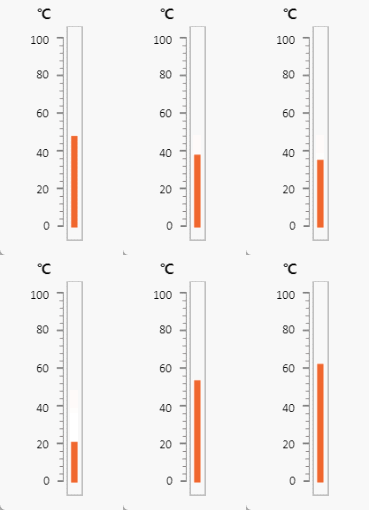
| Properties | Value |
|---|---|
| Vertical Enable | Enable |
| Value | Tags: Demo.Temperature |
| Reference Point | The direction of the scale.  Used for horizontal scaling, indicating scaling left and right with the object's left side as the reference point.  Used for horizontal scaling, indicating scaling left and right with the object's center as the reference point.  Used for horizontal scaling, indicating scaling left and right with the object's right side as the reference point.  Used for vertical scaling, indicating scaling up and down with the object's top side as the reference point.  Used for vertical scaling, indicating scaling up and down with the object's center as the reference point.  Used for vertical scaling, indicating scaling up and down with the object's bottom side as the reference point. |
| Min | Used in combination with the "Scale(%)" . Set the minimum value at which the animation takes effect, and the scaling ratio of the object at the minimum value.  |
| Max | Used in combination with the "Scale(%)" . Set the minimum value at which the animation takes effect, and the scaling ratio of the object at the minimum value.  |